Screenshots show sample data from a preview account, not real trading results.
Most of the setup is in Settings, which has four cards: Strategy, Trading mode, API keys and Telegram alerts.
1 Connect your AI
The AI works with your own AI API key: a long code from the AI provider, which bills you for what you use. You need an account there, with credit on it.
- Anthropic (recommended): create a key at console.anthropic.com.
- OpenAI: create a key at platform.openai.com.
- Open Settings in the sidebar and go to the API keys card.
- Paste your key into Anthropic API key or OpenAI API key.
- Press Save keys. The field then reads Set.
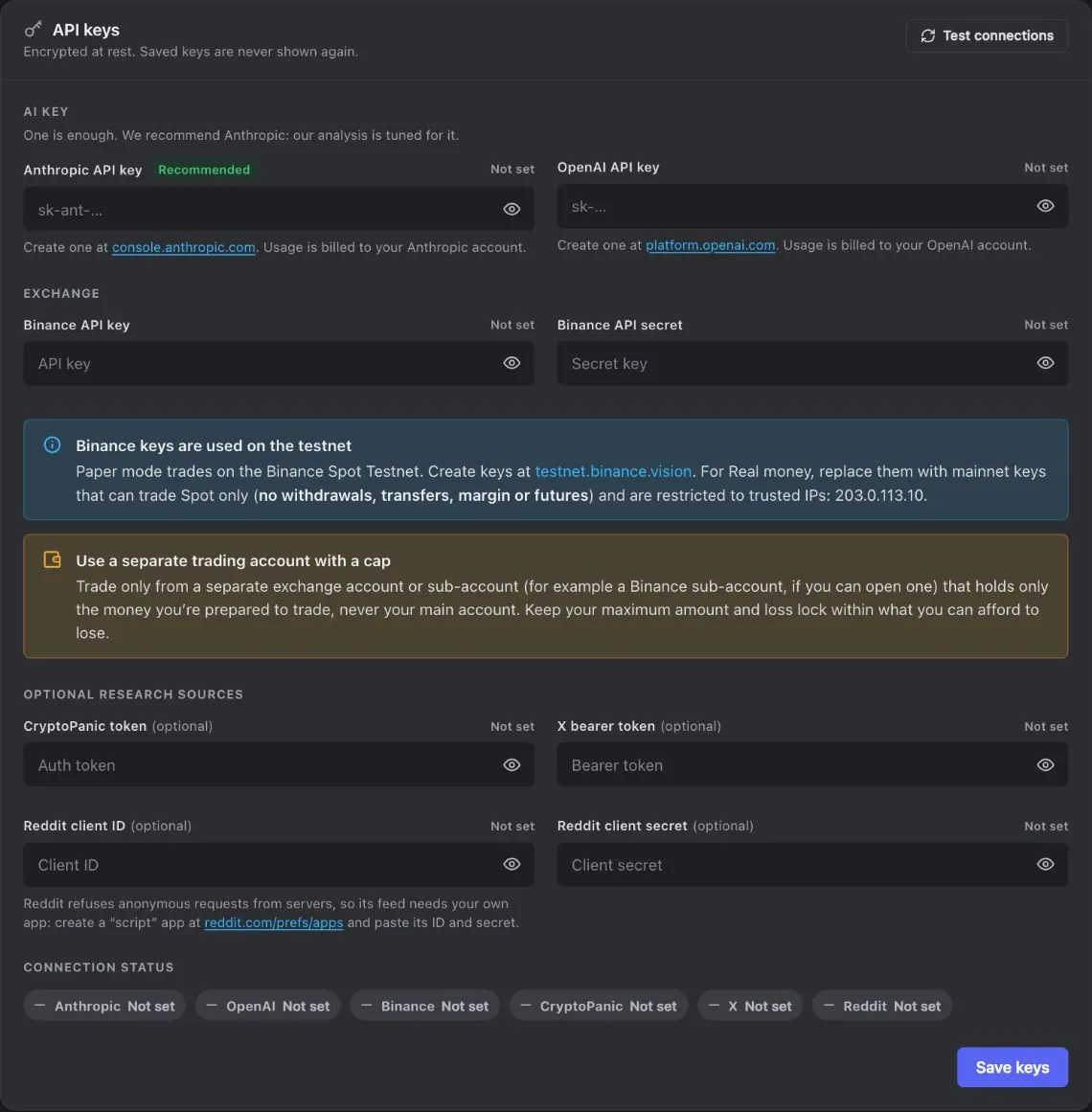
- Anthropic API key Recommended: the analysis is tuned for it. Usage is billed to your Anthropic account.
- OpenAI API key The alternative. One AI key is enough.
- Show / hide Shows what you typed before you save. Saved keys are never shown again.
- Binance API key For Paper: a key from the Binance testnet. Manual mode needs none.
- Binance API secret The secret that belongs to the same key.
- Testnet or real account Says which Binance the keys are used on, where to create them and what a real-money key must allow.
- Separate account Our recommendation for Real money (chapter 7).
- Optional research sources CryptoPanic, X and Reddit keys add news and social posts. All optional.
- Connection status One status per service: Connected, Not set, Invalid or Error.
- Test connections Checks every saved key again.
- Save keys Encrypts and saves what you typed. Blank fields keep their current value.
2 Connect the Binance testnet
This step is for Paper. The Binance testnet is Binance's public test system, with play money: you need no Binance account. If you only use Manual mode, skip this step.
- Open testnet.binance.vision and sign in with a GitHub account (free). Create an HMAC API key there.
- Copy the API key and the secret key now. Keep the secret private.
- On the API keys card, paste them into Binance API key and Binance API secret.
- Press Save keys. The app then tests your AI key and your Binance keys.

- Connected The key works. Binance also says testnet or live (live is your real account). A news source: a key is saved.
- Not set No key saved for this service. Fine for the optional sources.
3 Pick Paper or Manual mode
The Trading mode card in Settings shows the four modes.
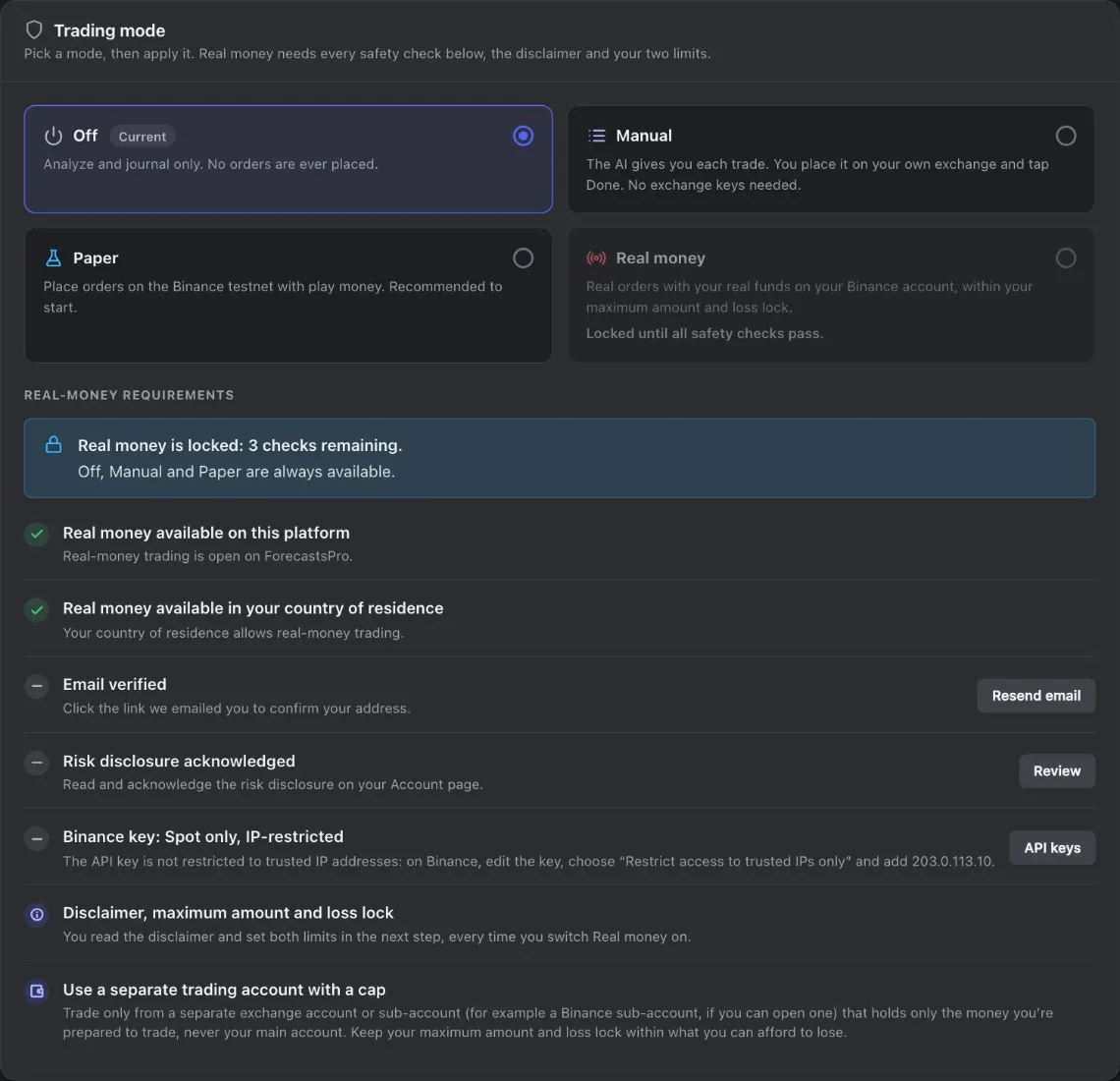
- Off Analysis only. No order is ever placed.
- Manual Manual mode: you place each trade by hand on any exchange. No exchange keys (chapter 8).
- Paper Practice orders with play money on the Binance testnet. No Binance account needed.
- Real money Automatic orders on your own Binance account. Locked until every safety check below passes.
- Status How many safety checks are left. Off, Manual mode and Paper are always available.
- Platform check Real money has to be open on ForecastsPro.
- Country check Your country of residence has to allow real-money trading.
- Email verified Resend email sends the confirmation link again.
- Risk disclosure Review takes you to the acknowledgement on your Account page.
- Trade-only Binance key Spot only, no withdrawals, restricted to the server IP address shown here.
- Disclaimer and limits Asked every time you switch Real money on.
- Separate account Recommended, not checked (chapter 7).
- Pick Paper to practice with play money, or Manual to place every trade yourself.
- Read the bar under the cards. It says what will happen. Nothing changes yet.
- Press Switch to Paper or Switch to Manual. The mode badge in the top bar then reads Paper or Manual.
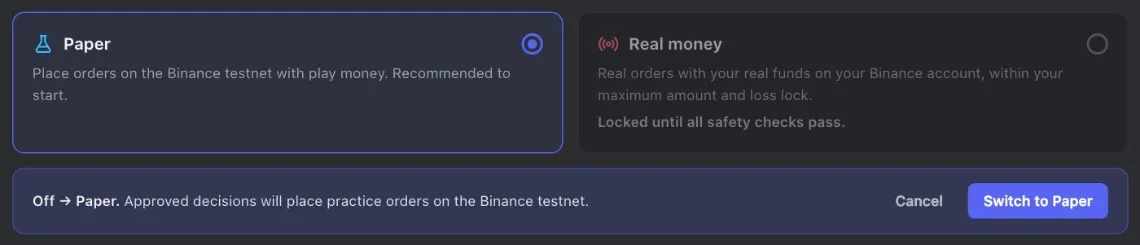
- Pick Paper Only prepares the change.
- What will happen Read what the switch does before you apply it.
- Cancel Keeps your current mode.
- Switch to Paper Applies the change.
In Paper, every practice order fails without the testnet keys of step 2. In Manual mode, read chapter 8 after chapter 5. You can switch to Off at any time.
4 Set your strategy
The Strategy card sets your budget, your risk level and how often the AI analyzes. Change what you need, then press Save strategy.
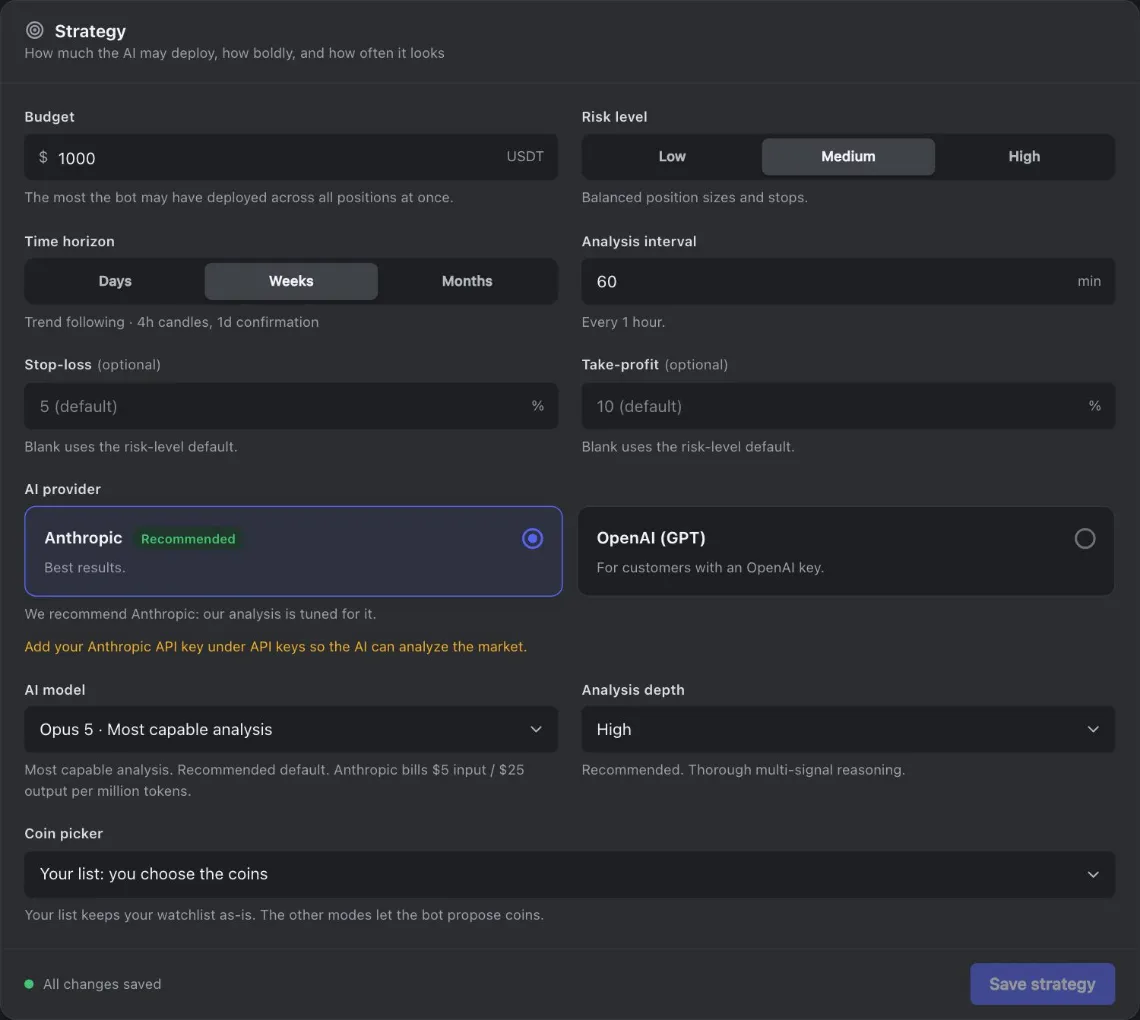
- Budget The most the app may have at work across all positions at once.
- Risk level Low, Medium or High: caps, daily-loss limit, minimum confidence, default stop-loss and take-profit (chapter 2).
- Time horizon Days, Weeks or Months: which candles the AI reads (chapter 10).
- Analysis interval Minutes between two analyses of autopilot. 0 picks the horizon’s default.
- Stop-loss Optional. Blank uses the risk level’s default.
- Take-profit Optional. Blank uses the risk level’s default.
- AI provider Anthropic (recommended) or OpenAI. You need that provider’s key.
- AI model The hint shows what the provider bills per million tokens.
- Analysis depth How long the AI thinks. Deeper costs more.
- Coin picker Your list keeps your watchlist as you set it.
- Save strategy Saves your changes. Discard appears while something is unsaved.
Time horizon and the automatic interval
With the Analysis interval at 0, your Time horizon also sets how often autopilot analyzes.
| Horizon | Style | Candles read | Interval at 0 |
|---|---|---|---|
| Days | Swing | 1h, confirmed on 4h | every 15 minutes |
| Weeks | Trend | 4h, confirmed on 1d | every 60 minutes |
| Months | Long term | 1d, confirmed on 1w | every 6 hours |
You can type your own interval in whole minutes, up to 10,080 (7 days). Autopilot counts 1 to 4 minutes as 5, and the app warns you below 15.
A good first strategy
- Budget: the amount you would really trade later. In Paper it is play money.
- Risk level: Low or Medium.
- Time horizon: Weeks, with the Analysis interval at 0.
- Stop-loss and Take-profit: blank.
- AI model: the recommended one, with Analysis depth at High.
- Coin picker: keep Your list.
Your AI provider bills you for every analysis: a cheaper AI model, a lower Analysis depth or a longer interval lowers the cost.
5 Build your watchlist
The Watchlist card on the dashboard holds the coins the AI analyzes. To add a coin, type its ticker (its short name, for example SOL) and press Add. The coin must trade against USDT on Binance.
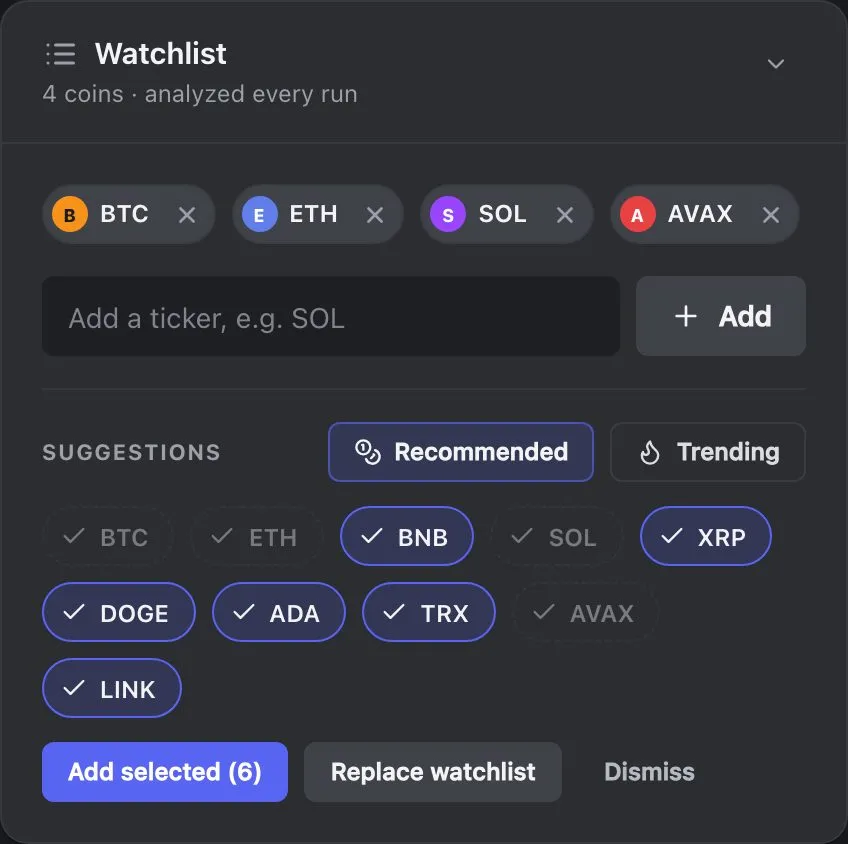
- Coin chip A coin on your watchlist. The × removes it.
- Add a ticker Type a ticker such as SOL.
- Add Adds the ticker you typed.
- Recommended Liquid coins with a top market cap.
- Trending Blends what the market is watching now with top market cap.
- Suggested coin Picked at first. Press it to leave it out. Greyed coins are already on your list.
- Add selected Adds the picked coins to your watchlist.
- Replace watchlist Swaps your list for the suggestions (Undo is offered).
Do not remove a coin while you hold a position in it: the AI then stops analyzing it and cannot sell it.
Tip
5 to 10 well-known coins are enough. More coins cost more AI usage, and small coins often trade at worse prices.
Telegram alerts (optional)
The Telegram alerts card in Settings sends a message to your Telegram when something happens in your account. In Manual mode it is the only way to hear about a waiting trade while the app is closed: the app sends no email for it.

- Telegram alerts The last card on Settings.
- What we keep Your Telegram chat ID, until you disconnect. Alerts pass through Telegram.
- Connect Telegram Makes your one-time link.
Telegram on your phone? Open ForecastsPro there and connect.
- Press Connect Telegram, then Open Telegram. The link is only for you. It works once, for 10 minutes.
- In Telegram, press Start. The Telegram bot answers, and the card shows Connected.
You get an alert:
- In Paper and Real money: when a buy or a sell fills, and when a stop-loss or take-profit fills, with its result.
- With Real money also: when the loss lock is reached, when a safety check switches Real money off, or when a position may be without its stop-loss.
- In Manual mode: when an analysis gives you trades to place, at most once in 12 hours for the same trades.
To stop, press Disconnect on the card, or send /stop to the Telegram bot. A password change or reset also turns the alerts off: connect again afterwards. An alert can fail to arrive, so the app and your emails stay the record.
The Telegram bot only sends
It never asks for your password, your API keys or money, and it cannot trade.
Your account is set up. Next: chapter 5, your first analysis.