Screenshots show sample data from a preview account, not real trading results.
Before you start
Real-money trading can lose money, and the AI can be wrong. Take this step only after a few weeks in Paper, when you understand how the decisions and the risk gate behave. Real-money trading, where available, may be restricted in your country (for example the EU/EEA, UK or US) because of local rules or Binance availability. The first two safety checks on the Trading mode card say whether Real money is open for you: look there first. No Binance where you live? Manual mode works with any exchange, and you place every order yourself (chapter 8).
Real money is the automatic mode: the app places real orders on your own Binance account, inside two limits you set.
1 Confirm your email
Press the button in your receipt email (chapter 3). Resend verification email on your Account page sends it again.
2 Acknowledge the Risk Disclosure
On the Risk disclosure card of your Account page, read the document, tick the box and press Acknowledge. A new version asks you again (chapter 6).
3 Use a separate account
Open a separate Binance account or sub-account. Move into it only the money you are prepared to trade. Never connect your main account or your savings.
4 Create a trade-only Binance key
First switch to Off on the Trading mode card: Paper cannot use the new key. Then copy our server IP address from the API keys card.
On Binance, open API Management for that account, create a new API key and set its permissions:
Turn on
- Enable Spot & Margin Trading (reading is on by default)
- Restrict access to trusted IPs only, with our server IP address
Leave off
- Withdrawals
- Internal and universal transfers
- Margin loans
- Futures, options and portfolio margin
5 Save the new keys
- On the API keys card, paste the new key and its secret into the two Binance fields. They replace your testnet keys, if you have any.
- Press Save keys.
- On the Trading mode card, the line Binance key: Spot only, IP-restricted must show a green check. If not, it says what to fix.
Before your first switch to Real money, Connection status tests the key on the Binance testnet and shows Invalid. That is expected.
6 Check the list, then pick Real money
On the Trading mode card, every safety check now shows a green check. Pick Real money, then press Continue to Real money….
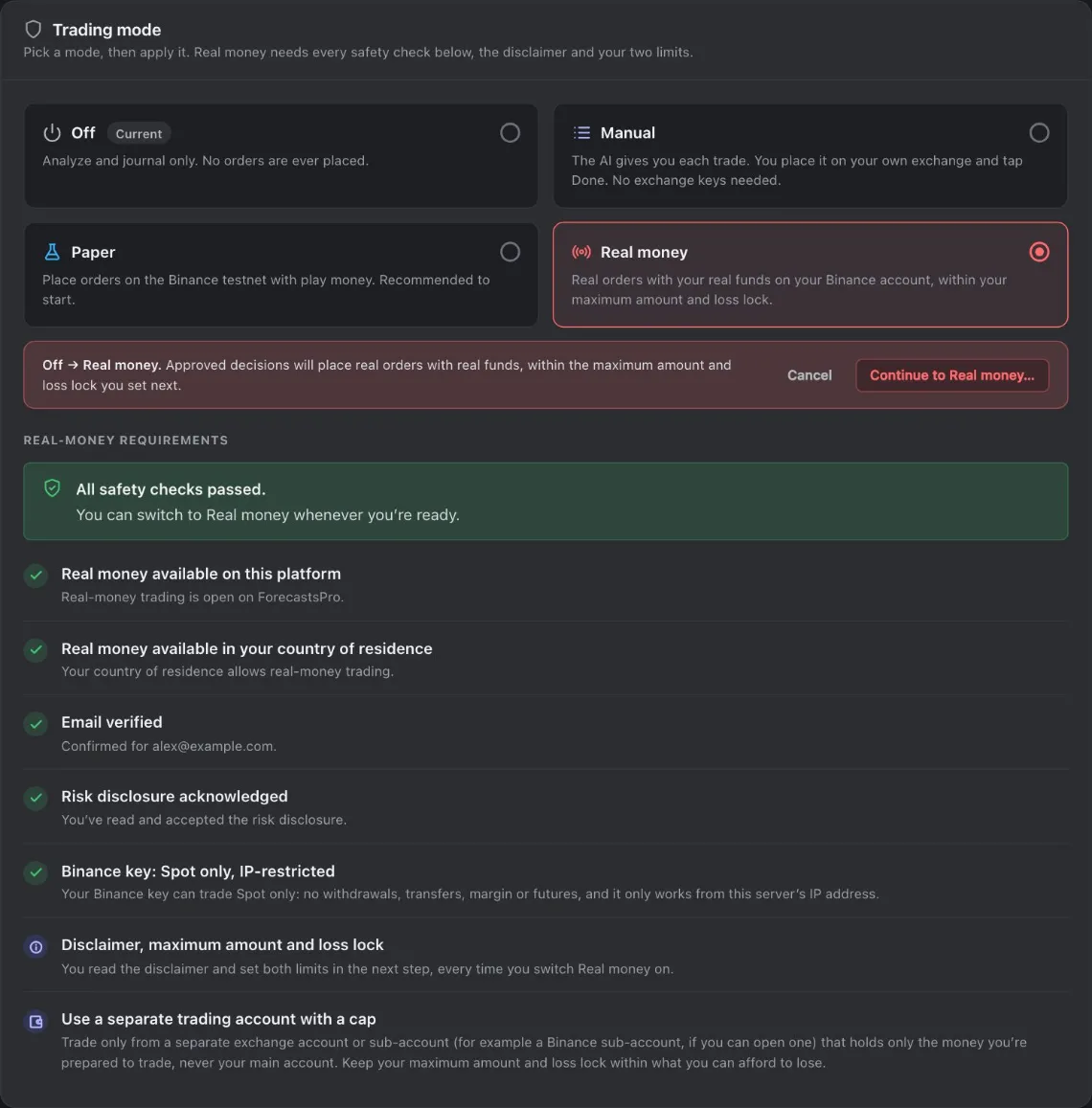
- All checks passed You can pick Real money when you are ready.
- Real money Picked. Nothing changes yet.
- Continue to Real money Opens the disclaimer and your two limits.
- Trade-only key Spot only, no withdrawals, restricted to the server IP.
7 Read the disclaimer and set your two limits
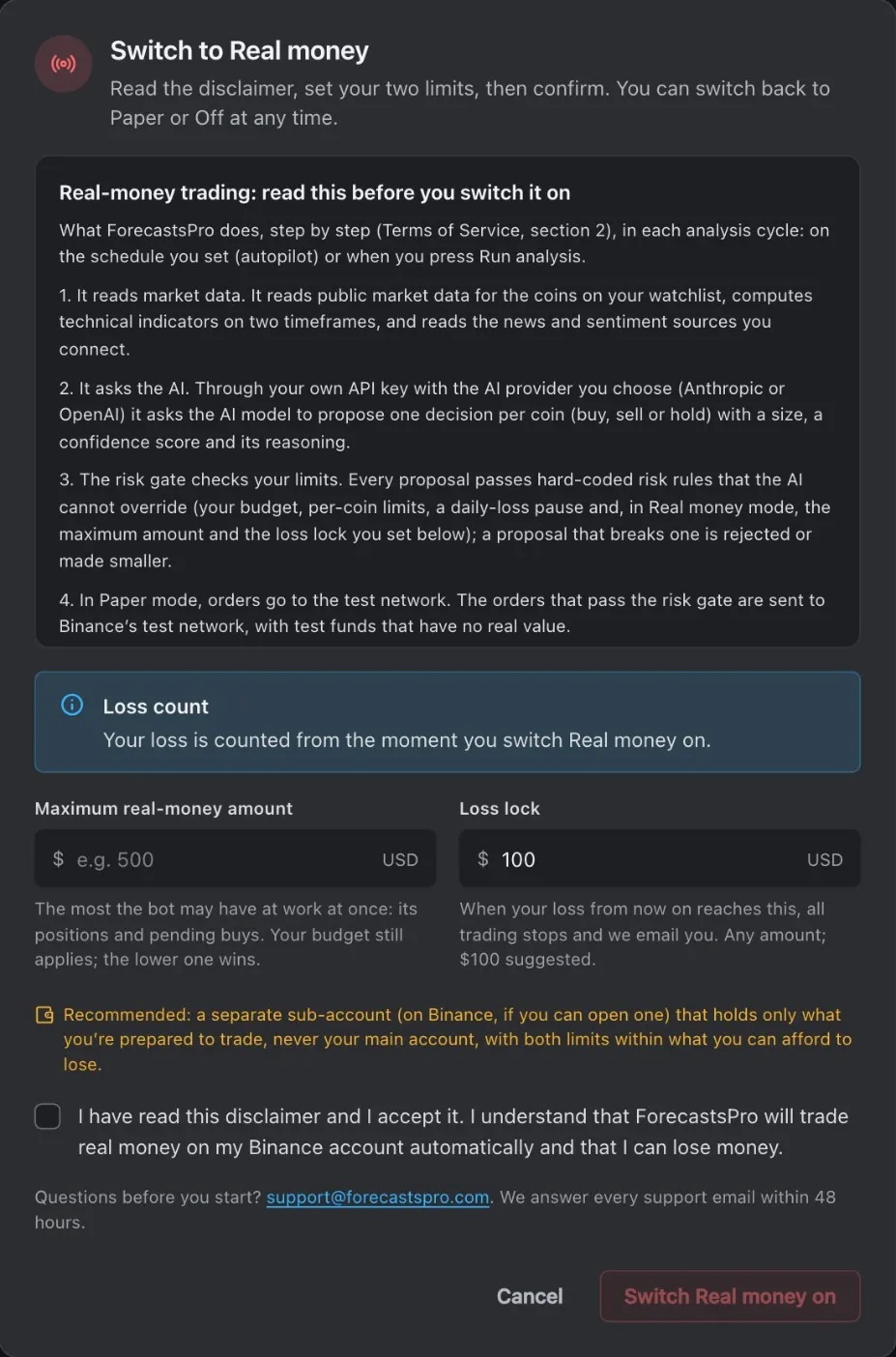
- Disclaimer Read it to the end. It has a version number.
- Loss count Your loss is counted from the moment you switch on.
- Maximum real-money amount The most the app may have at work at one time. Your budget still applies, and the lower one wins.
- Loss lock When your loss reaches it, all trading stops. Nothing is sold. $100 suggested.
- Separate account Keep both limits within what you can afford to lose.
- Accept Tick to accept the disclaimer.
- Switch Real money on Switches Real money on. The app checks everything again first.
Type a small Maximum real-money amount and a Loss lock you can accept.
Is autopilot running? Its next analysis can then place real orders without asking you. Stop autopilot first if you do not want that.
Then tick the box and press Switch Real money on. Real money is now on.
8 Start small
Keep the risk level at Low or Medium. Raise your limits only after weeks of results you understand, never to recover a loss.
While Real money is on
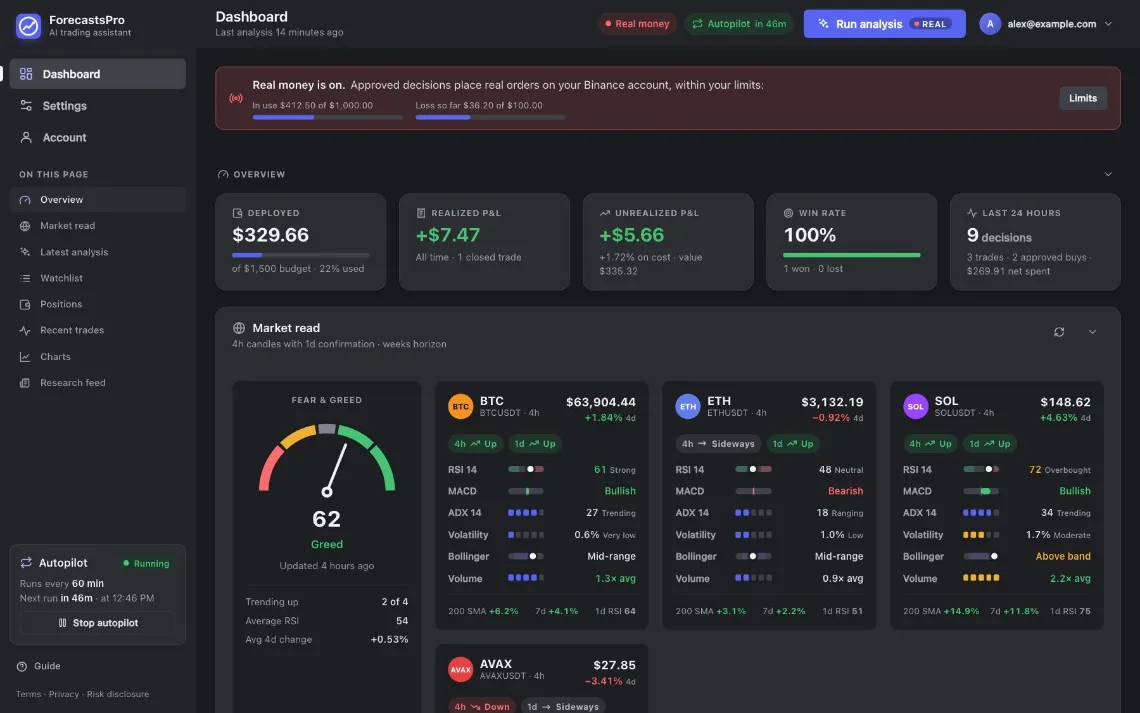
- Real money The mode badge turns red while Real money is on.
- Real tag An analysis you start places real orders. The app asks you to confirm first.
- Real-money banner On every page: the amount at work and the loss so far against your limits.

- In use of your maximum Money at work against your maximum amount.
- Loss so far of your lock Your real-money loss against your loss lock.
- Change limits New limits. The loss keeps counting from the same moment.
- Support Questions? Write to us.
- Your loss count starts when you first switch Real money on. New limits, or switching off and on again, do not reset it.
- You can switch to Off at any time. The app then places no order and sells nothing: your positions stay open on Binance with their stop-loss and take-profit orders.
- To go back to Paper, save your testnet keys again first: Paper cannot use your trade-only key. In Paper and in Manual mode the app no longer sees your real account. Check your positions and their stop-loss orders on Binance.
If Real money switches off by itself
The app switches Real money to Off when your key or your country no longer passes its safety check: for example, a permission is added to your key. The Trading mode card says what failed. We email you, and with Telegram alerts connected you get a message (chapter 4).
Saving or removing Binance keys also switches it off: the app must check a new key first.
Each time, the app sells nothing and your positions stay open on Binance with their orders. Autopilot keeps analyzing and places no order. Fix the cause, then switch Real money on again.
If the loss lock is reached

- Loss lock reached Trading and autopilot are off. Nothing is sold: your positions and their orders stay on Binance.
- Review and re-enable Only if you decide to: new limits, the disclaimer again and a new loss count.
All trading and autopilot stop. The app sells nothing: your positions stay open on Binance with their stop-loss and take-profit orders, so the loss can still grow. We email you, and with Telegram alerts connected you get a message. Read your decision journal before you press Review and re-enable.
Next: chapter 9, habits that keep you in control. Chapter 8 is Manual mode.