Screenshots show sample data from a preview account, not real trading results.
This chapter is the reference.
The app frame
The sidebar and the top bar stay the same on every page. Settings is not in this tour: chapter 4 explains its four cards.
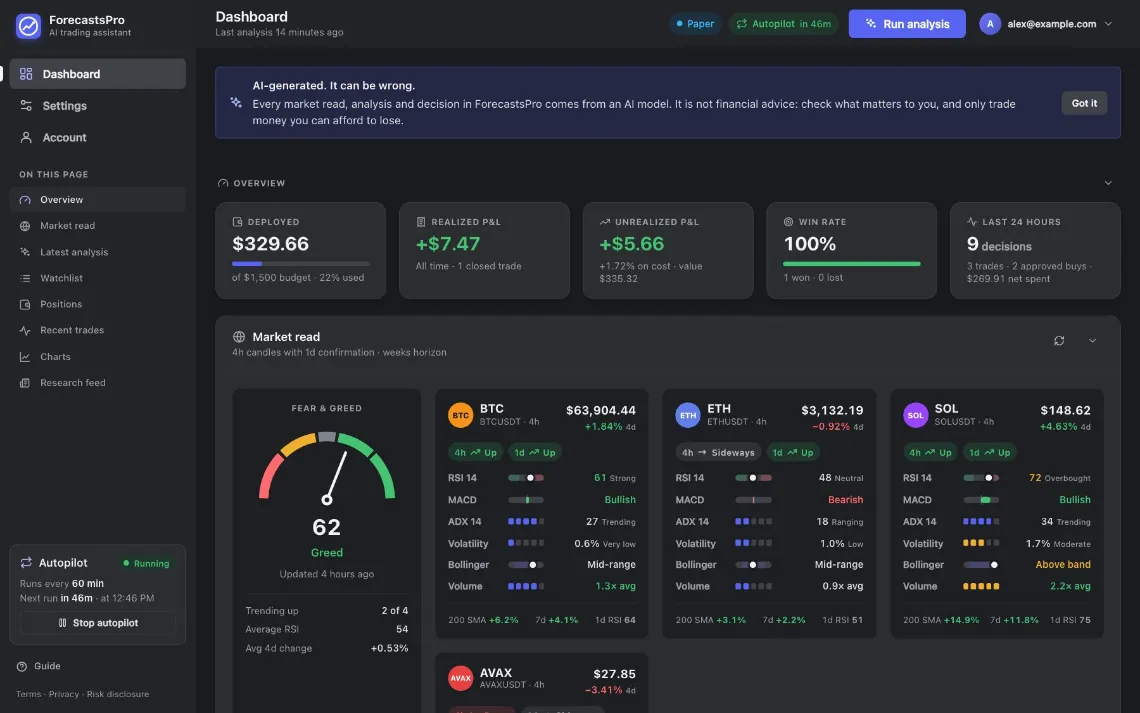
- Logo Back to the dashboard from anywhere.
- Dashboard Market read, decisions, positions and trades.
- Settings Everything you set up, in four cards.
- Account Profile, subscription, risk disclosure, password and your data.
- On this page Takes you to a card of this page and opens it when it is folded.
- Autopilot Scheduled analyses: the status, the next one, start and stop.
- Guide This guide, in a new tab.
- Legal Terms, Privacy Policy and Risk Disclosure.
- Mode badge Your mode. Press it to open Trading mode in Settings.
- Autopilot badge Time to the next analysis. Press it for the controls.
- Run analysis Analyzes your whole watchlist now.
- Account menu Account, Settings, Billing, this guide and Sign out.
- AI notice Once per session. Got it closes it.
- Overview Your key figures, for the mode you are in.
- Market read The market numbers of every coin on your watchlist.
- Fold Every card has this arrow. It folds the card down to its title.
The account menu
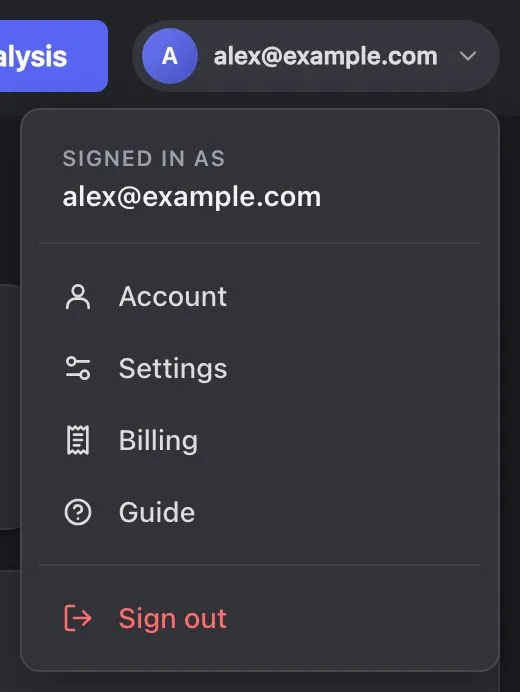
- Signed in as The account you are using.
- Account Profile, subscription and security.
- Settings Strategy, mode, keys and Telegram alerts.
- Billing Your access, renewal and receipts.
- Guide Opens this guide in a new tab.
- Sign out Ends this session on this device.
The dashboard, card by card
The dashboard is a column of cards, top to bottom: Overview, Market read, Latest analysis, Watchlist, Positions, Recent trades, Charts and Research feed. In Manual mode some cards differ (chapter 8).
Fold a card
Folding only hides a card: nothing else changes. The app remembers what you folded, on that browser.
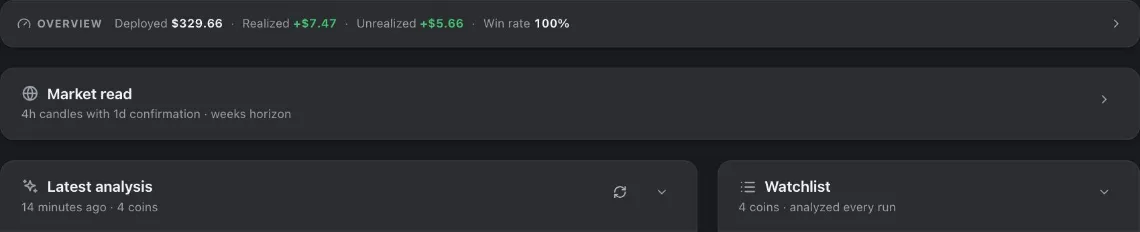
- Overview, folded What stays when the Overview is folded.
- Open Opens it again. Pressing anywhere on the bar does the same.
- A folded card Only its title and one line stay.
- Fold Folds an open card.
Overview: your key figures

- Deployed Money at work in open positions, against your budget.
- Realized P&L Profit or loss of closed trades, all time.
- Unrealized P&L Gain or loss of open positions at today’s price.
- Win rate Share of closed trades that ended in profit.
- Last 24 hours Decisions, trades, approved buys and net money flow.
- Fold Folds the Overview into one line that keeps the first four figures.
The figures count only the trades the app placed, or in Manual mode the trades you confirmed. Paper, Real money and Manual mode each keep their own figures. The Overview, Positions and Recent trades show only the mode you are in. In Off you see Paper or Real money, whichever of the two you used last.
Market read
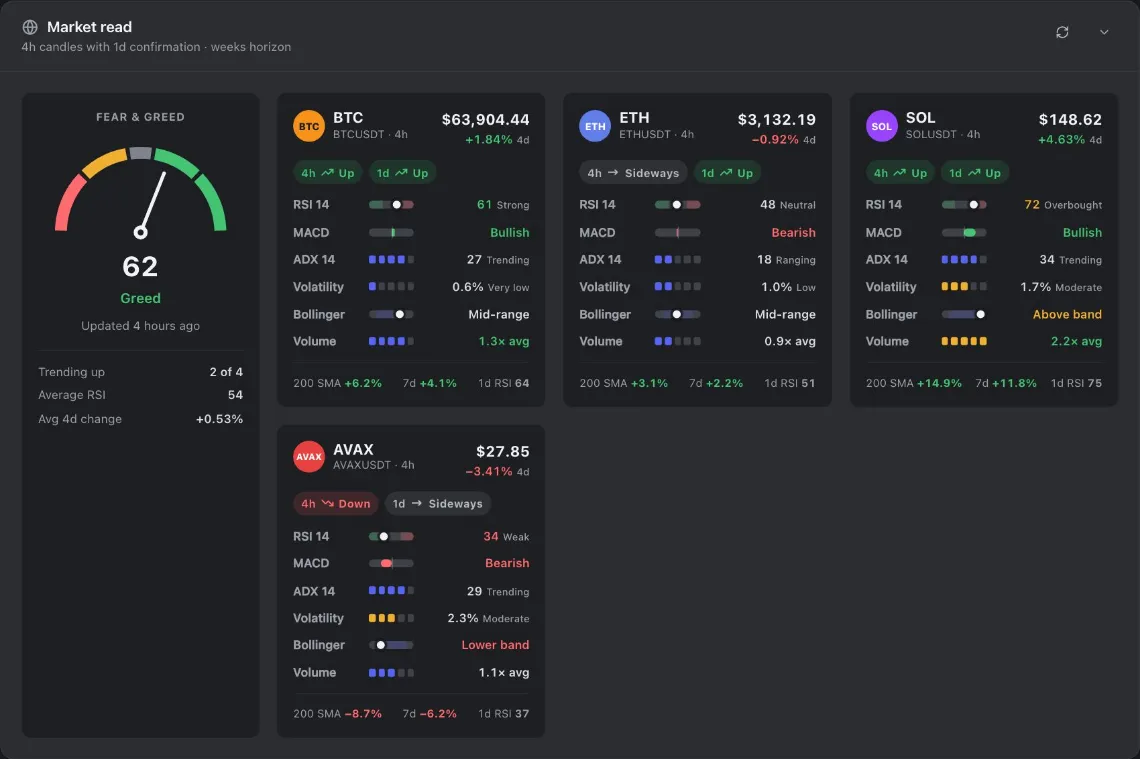
- Timeframes The candles used, set by your time horizon.
- Fear & Greed Crypto crowd mood: 0 extreme fear, 100 extreme greed.
- Reading Today’s value, its label and when it was updated.
- Watchlist mood Coins trending up, average RSI and average change.
- Coin card One per watchlist coin. The next picture explains it row by row.
- Refresh Reloads market data now.
- Fold Folds the card.
One color rule holds everywhere: green is strong or up, red is weak or down. Amber marks a price that rose or fell very far, or that moves a lot. Chapter 10 explains every number.
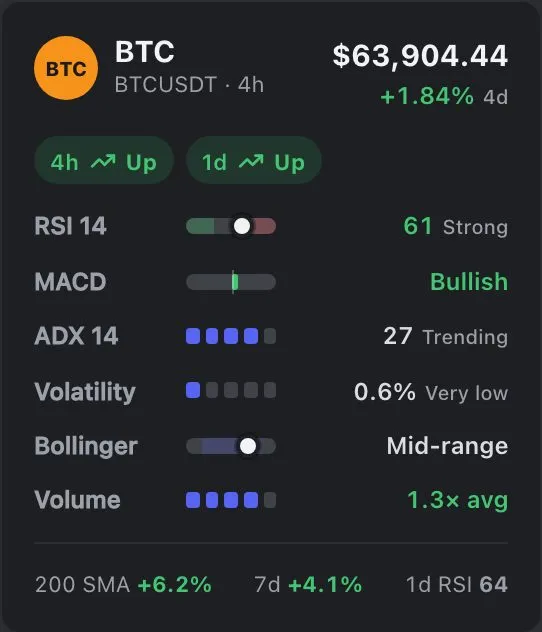
- Coin and pair Ticker, Binance pair and candle size.
- Price and change The price now, and its change over the last 24 candles.
- Trend Up, Down or Sideways on the trading timeframe.
- Higher trend The same on the next timeframe up.
- RSI 14 Momentum, 0 to 100.
- MACD Momentum direction: Bullish or Bearish.
- ADX 14 Trend strength: Trending or Ranging.
- Volatility Average candle size (ATR) as % of price.
- Bollinger Where the price sits in its bands.
- Volume Recent volume against its average.
- Context Distance from the 200 SMA, the change over 168 candles and the higher timeframe’s RSI.
Latest analysis and Watchlist
See chapter 5, and chapter 4 for the Watchlist.
Positions and Recent trades
See chapter 5. Both cards also refresh by themselves.
Charts
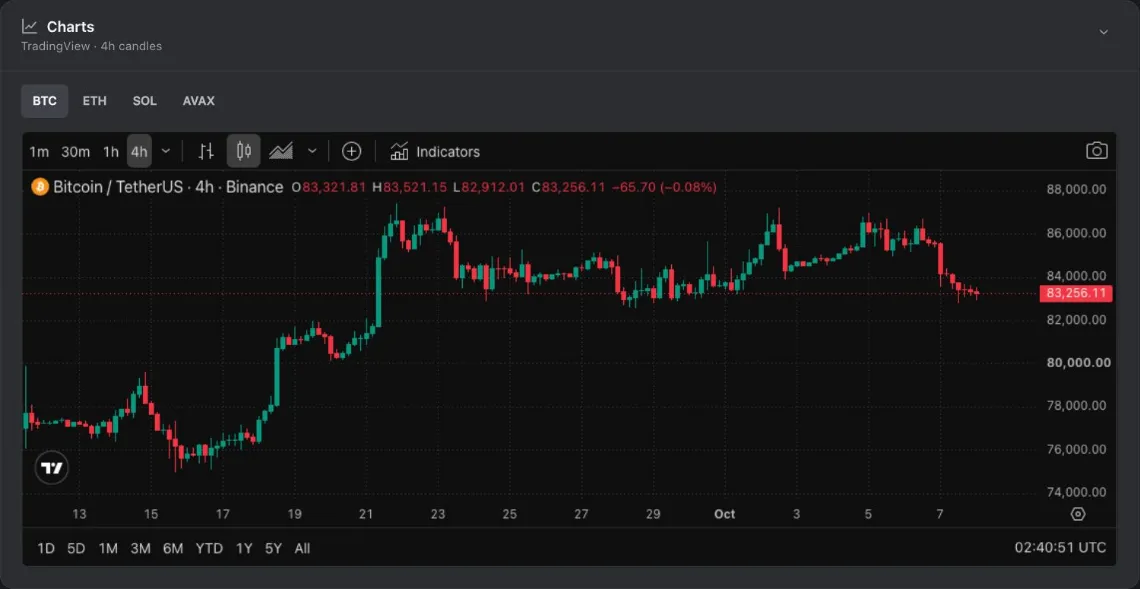
- Coin tabs One tab per watchlist coin.
- Chart Candles sized to your horizon. Loads when you scroll to it.
Research feed
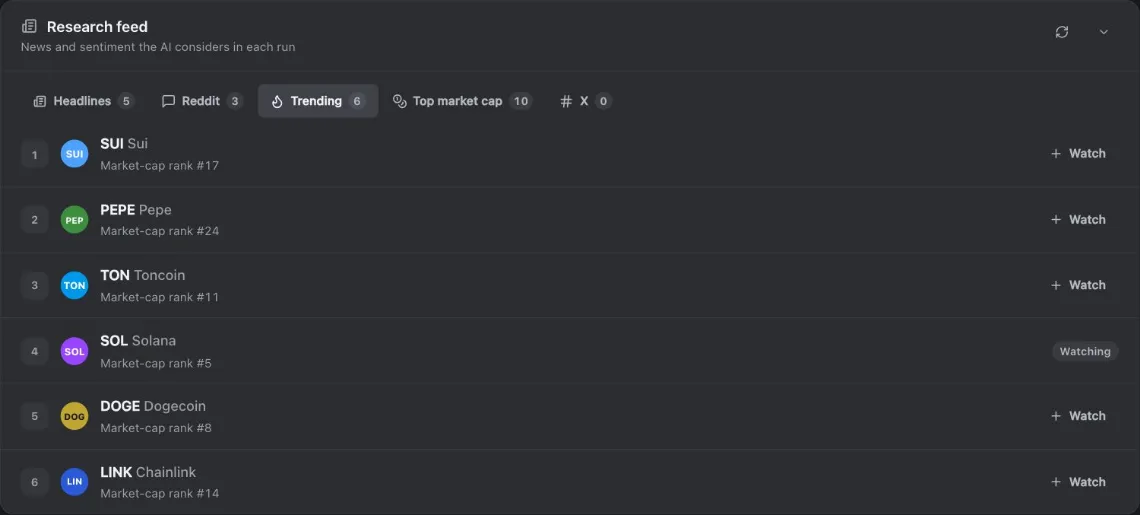
- Headlines News for your coins (needs your CryptoPanic token).
- Reddit Hot posts from crypto communities (needs your Reddit client ID and secret).
- Trending What the market is searching for now.
- Top market cap The largest coins, with price and 24h change.
- X Posts about your coins (needs your X bearer token).
- Item Rank, coin and market-cap rank.
- Watch Adds the coin to your watchlist.
Your Account page
Open Account in the sidebar. A red ! next to it means your email is not confirmed or the Risk Disclosure is not acknowledged.
Profile
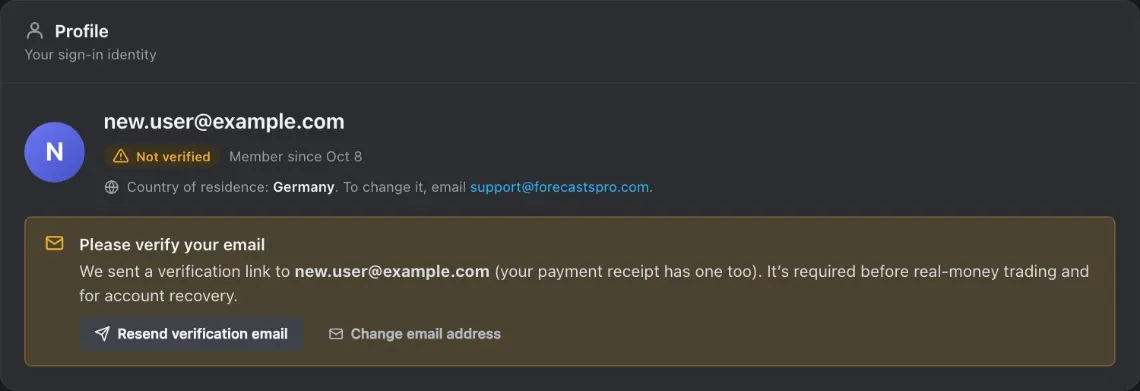
- Your email The address you sign in with.
- Verification Email verified or Not verified.
- Country of residence To change it, email support.
- Resend verification email Sends the confirmation link again.
- Change email address Fixes a typo in the first 48 hours, while unconfirmed.
Subscription
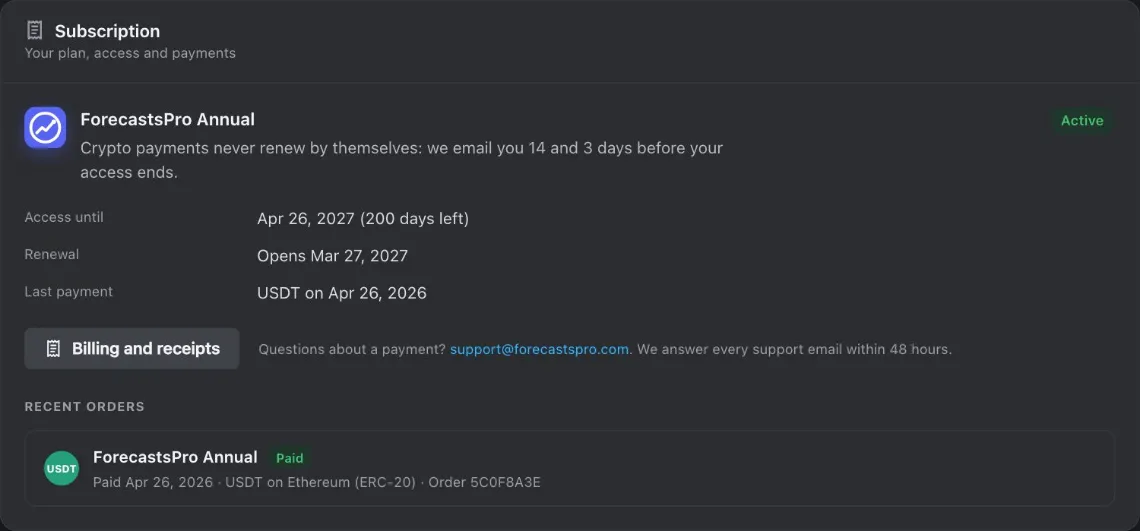
- Your plan ForecastsPro Annual.
- Status Active, ending soon or ended.
- Access facts Access end date, when renewal opens and your last payment.
- Billing and receipts Opens the Billing page.
- Recent orders Your payments with their status and order number.
Risk disclosure
Real money needs this acknowledgement (chapter 7).
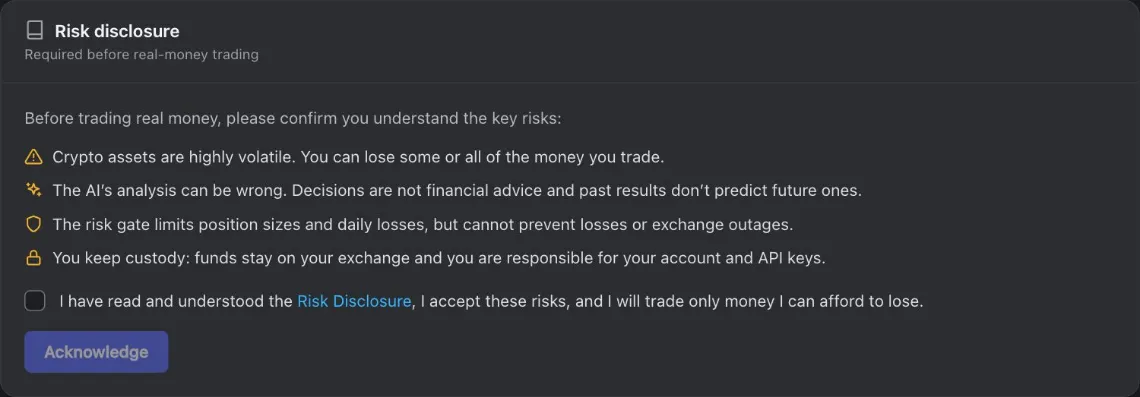
- Key risks The four things to understand before you switch to Real money.
- Risk Disclosure Opens the full document.
- Acknowledgement box Tick it once you have read and accepted the risks.
- Acknowledge Records your acknowledgement and the version you accepted.
A new version of the Risk Disclosure
When we publish a new version, the app asks you to acknowledge it again. Until you do, you cannot switch Real money on. Real money that is already on keeps running until it is switched off. Off, Paper and Manual mode keep working.

- Red banner On every page until you acknowledge the new version.
- Review and acknowledge Opens the Risk disclosure card on your Account page.
- Account ! The red ! shows which page needs you.
- Press Review and acknowledge in the red banner.
- Open the Risk Disclosure link on the card and read the new version.
- Tick the box and press Acknowledge.
The banner and the red marks then go away.
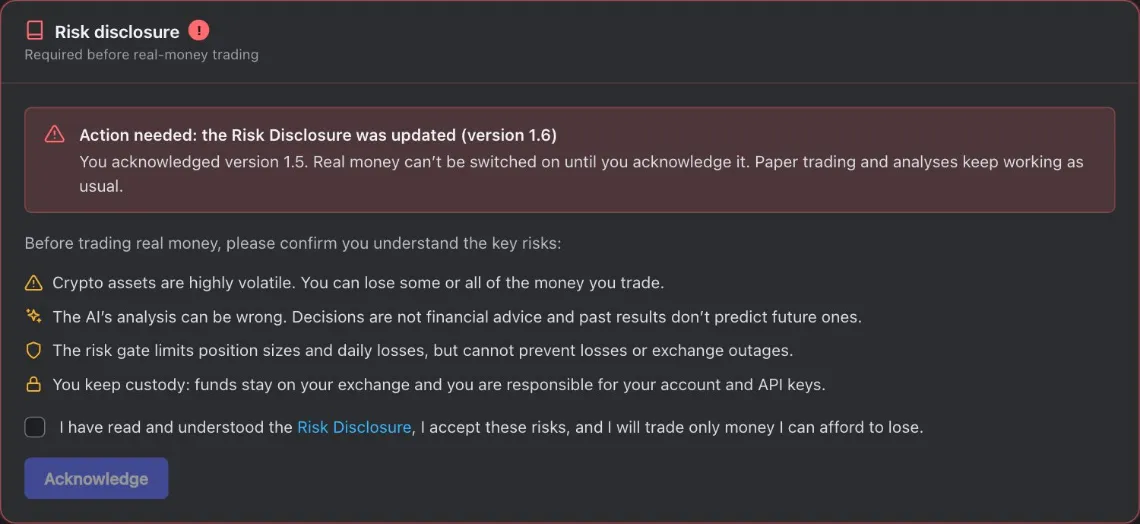
- Red ! by the title A new version of the Risk Disclosure is waiting for you.
- What changed The new version, the one you accepted before, and what is limited until you acknowledge.
- Read and tick The link to the new version, and the box to tick.
- Acknowledge Records the new version on your account.
Password, sessions, your data and deleting your account
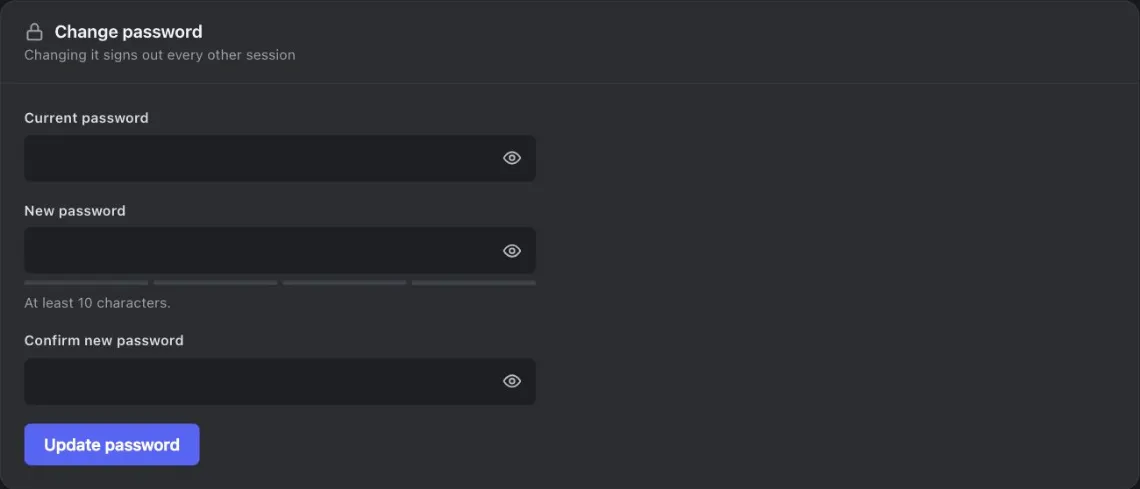
- Current password Proves it is you.
- New password The meter under it shows how strong it is.
- Confirm new password Type the new password again.
- Update password Saves it, signs out every other session and turns Telegram alerts off.
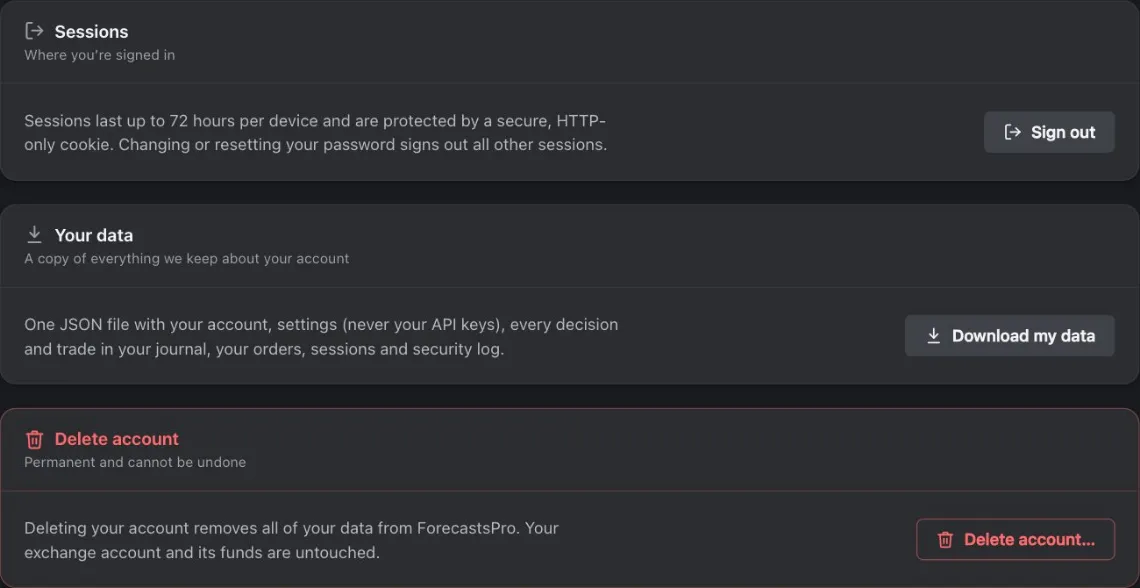
- Sign out Ends the session on this device.
- Download my data One file: your account, settings (never your keys), journal, orders and any Telegram chat ID.
- Delete account Permanent. The app asks for your password first.
Deleting your account permanently removes your settings, your encrypted keys, your decision journal and your security log. Your exchange account and its money are not touched, and orders already on Binance stay there.
Billing and renewal
Open Billing in the account menu. Near the end of your access, a banner in the app has a Renew button.
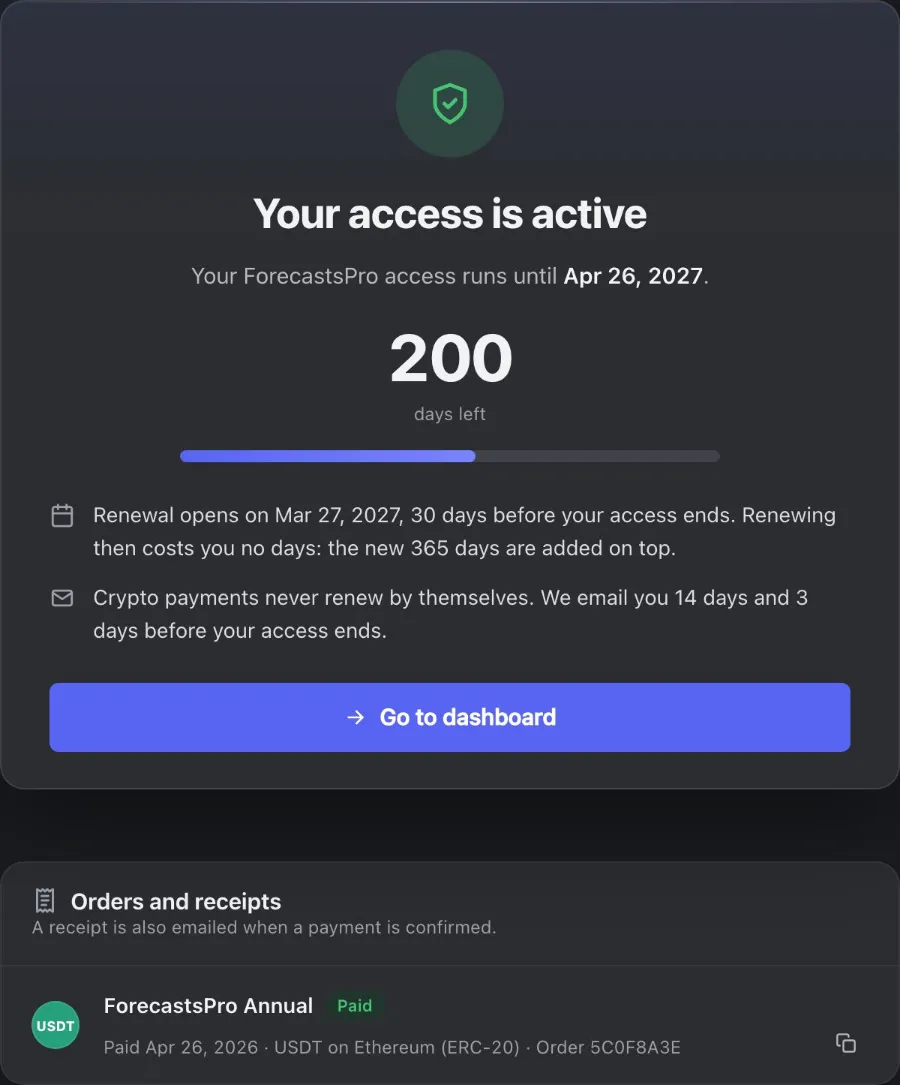
- Access status Whether your access is active, and until when.
- Days left Counts down to the end of your access.
- Renewal Opens 30 days before the end. The new 365 days are added on top.
- Reminders Nothing renews by itself. We email you 14 and 3 days before the end and on the day it ends.
- Go to dashboard Back to the app.
- Receipt Each order with its status, coin, network and order number.
- Copy order ID Copies the order number for an email to support.
If your access ends, analyses and new orders stop. Nothing is sold: your positions and their orders stay on Binance. After you renew, Real money is off. Switch it on again in Settings (chapter 7).
On your phone
ForecastsPro works in the browser of your phone.
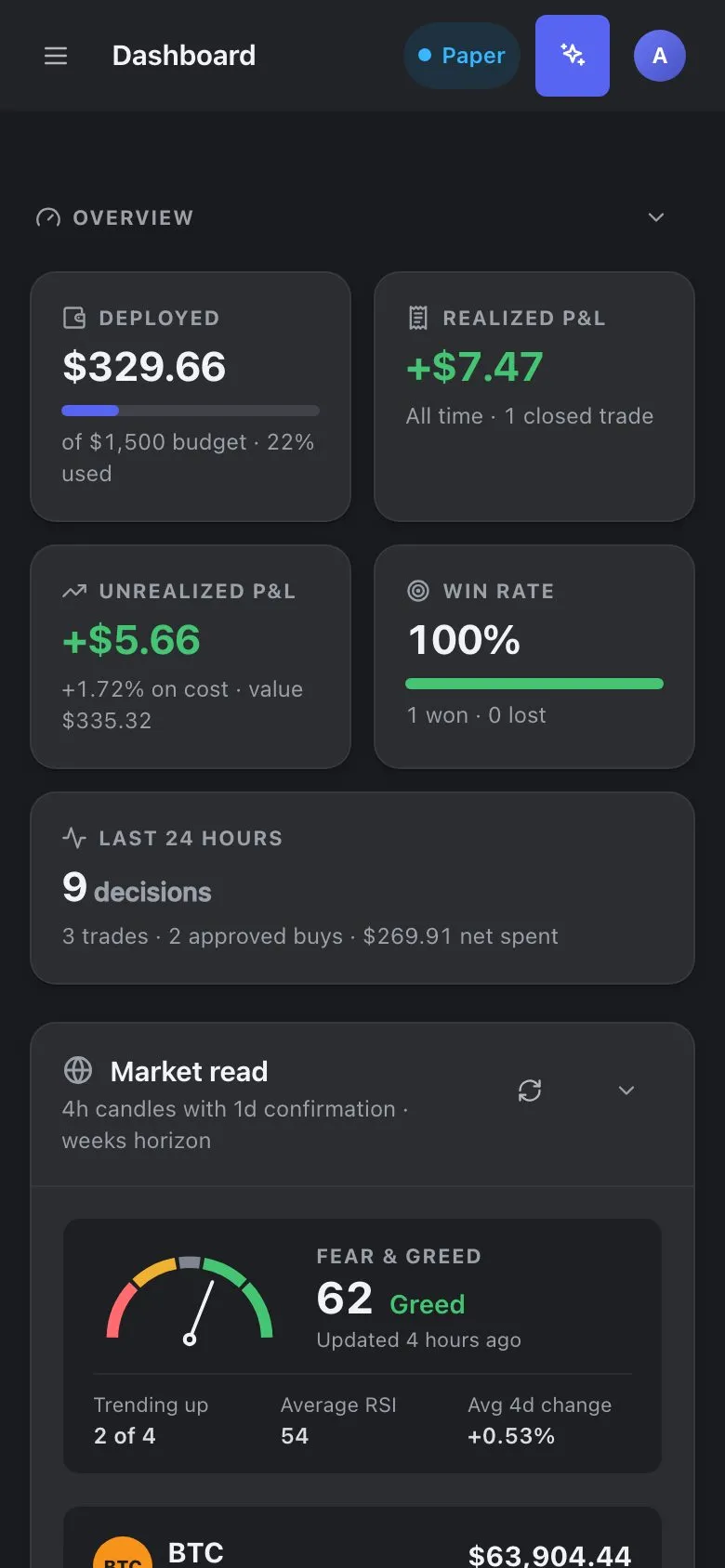
- Menu Opens the sidebar: pages, On this page and autopilot.
- Mode badge Your mode.
- Run analysis Same as on a computer.
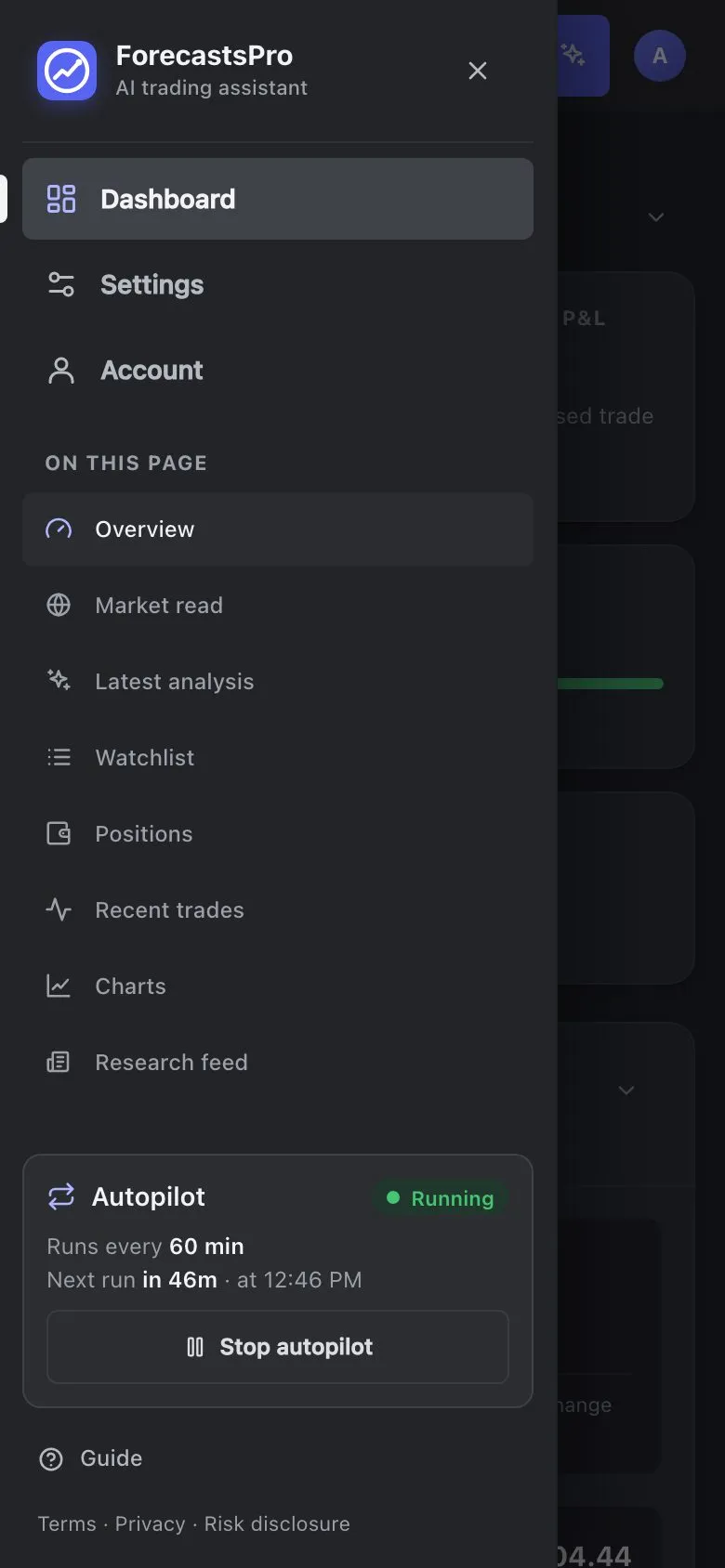
- Pages Dashboard, Settings and Account.
- On this page Takes you to a card of this page.
- Autopilot Start or stop scheduled analyses.
- Guide This guide, on your phone too.
- Close Closes the menu.
Next: chapter 7 for Real money, or chapter 8 for Manual mode.