Screenshots show sample data from a preview account, not real trading results.
Four short steps, in order.
1 Create your account and pay
Open the checkout page at app.forecastspro.com/checkout. Fill in the form, tick the box and press the pay button.
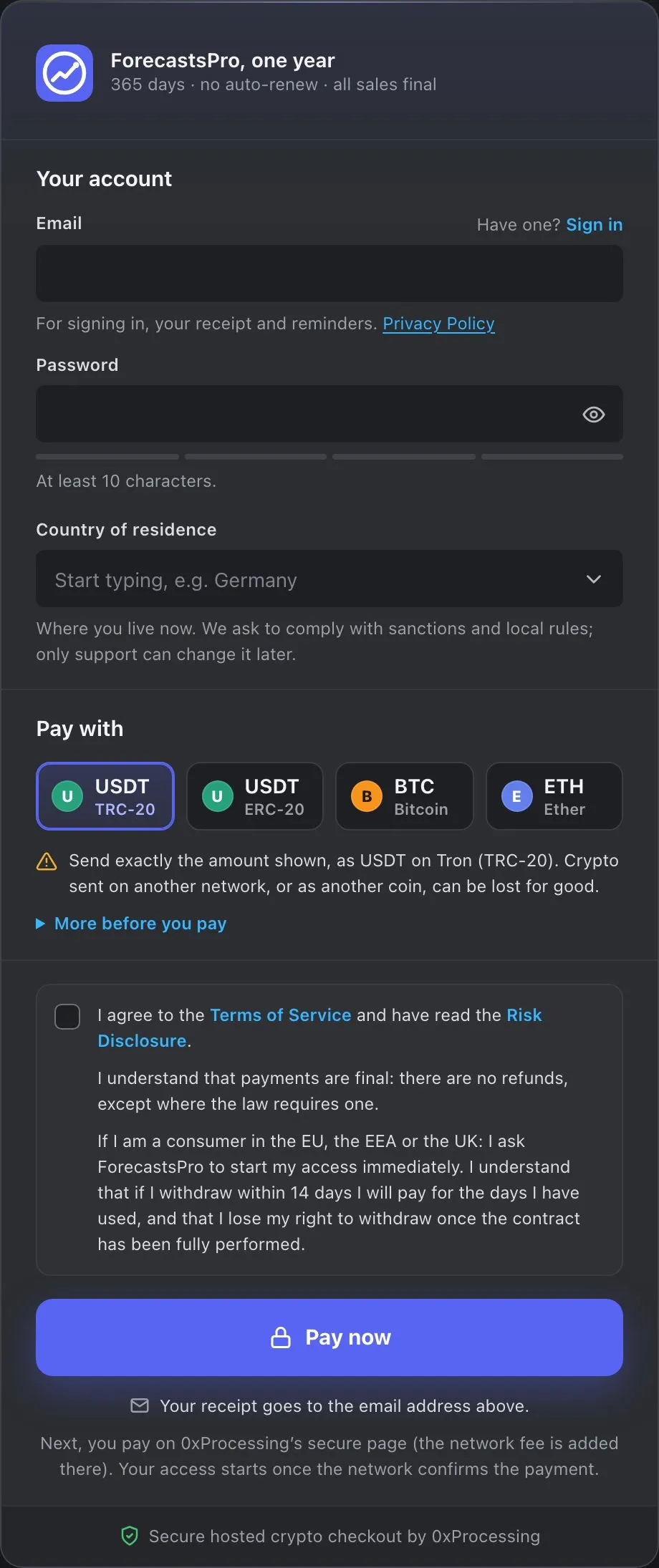
- Email Your sign-in address. Your receipt, reminders and password resets go here.
- Password At least 10 characters. You sign in with it.
- Country of residence Where you live now. Only support can change it later.
- Pay with USDT on TRC-20 or ERC-20, BTC or ETH.
- Network warning Send exactly the coin and network shown. A payment on another network can be lost.
- Agreement box Accept the Terms and confirm you read the Risk Disclosure.
- Pay Creates your account and opens the secure 0xProcessing payment page.
On the payment page, send exactly the amount, coin and network it shows, within about 30 minutes. Your access starts once the network confirms the payment, usually within minutes, and your receipt arrives by email. Access runs for 365 days and never renews by itself.
2 Confirm your email
Your receipt email has a button to confirm your address. Press it. Until you do, the banner Confirm your email stays at the top of the app, and Resend email sends the email again. Real money needs a confirmed email.
Is the address wrong? For the first 48 hours, while it is not confirmed, you can correct it: open Wrong address? on the banner, or your Account page.
3 Sign in
The checkout signs you in on that browser. Elsewhere, sign in at app.forecastspro.com with your email and password.
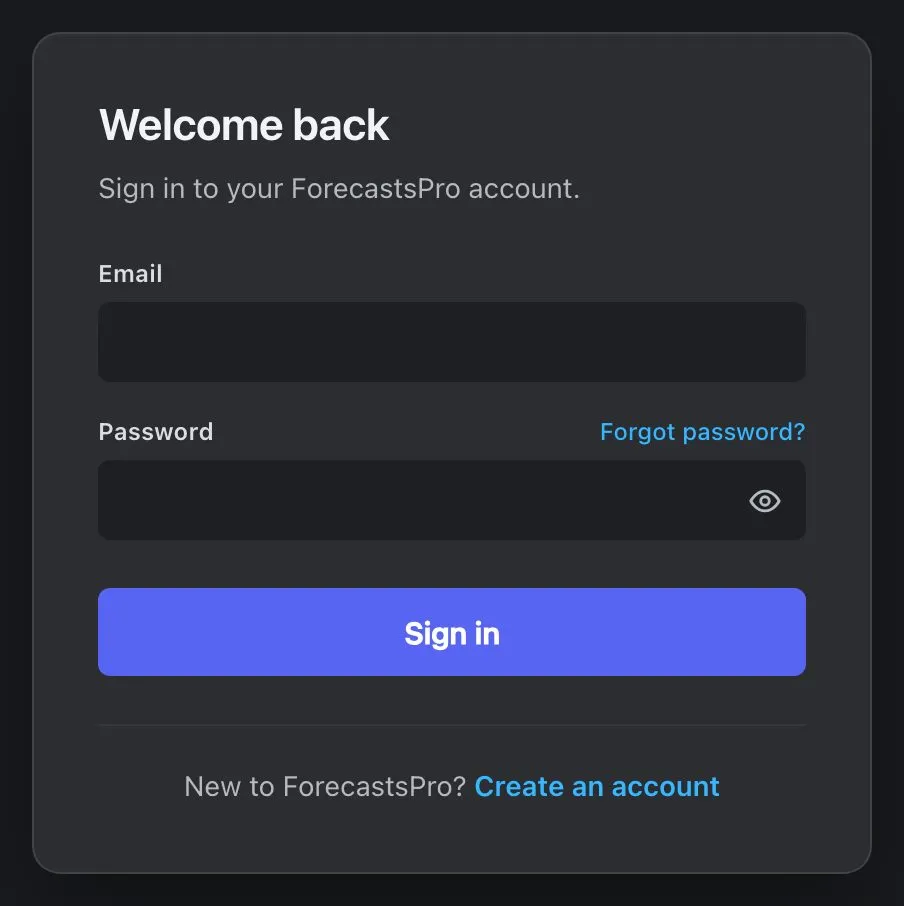
- Email The address you paid with.
- Password The eye button shows what you typed.
- Forgot password? Sends a reset link to your email.
- Sign in Opens your dashboard. A session lasts up to 72 hours on each device.
4 Your first look
A new account opens on the dashboard, with a setup checklist at the top. Follow its steps in order.
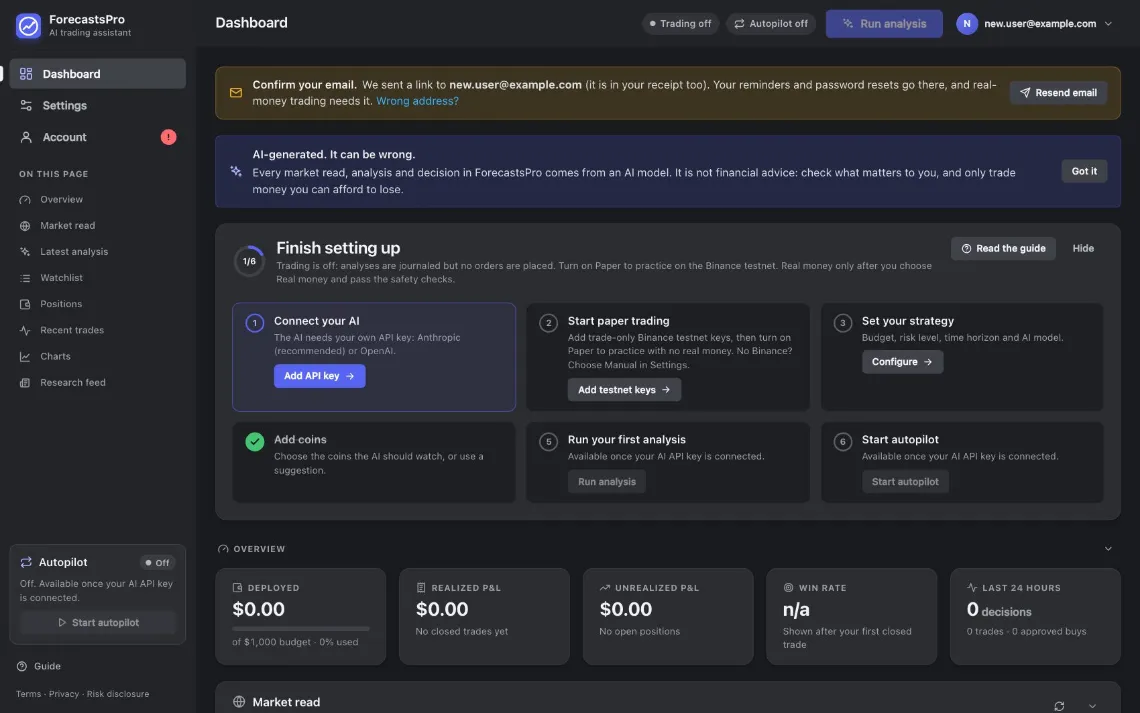
- Confirm your email Stays until you confirm your address (step 2).
- AI notice Shown once per session: every analysis is AI-generated and can be wrong.
- Setup checklist Six steps from a new account to autopilot. The ring shows how many are done.
- Next step The highlighted button is always your next step.
- Read the guide Opens this guide in a new tab.
- Hide Hides the checklist. Everything stays available in Settings.
- Mode badge Your mode. A new account has trading off. Press it to open Trading mode in Settings.
- Account needs you The ! means an action is waiting on your Account page.
The six setup steps
- Connect your AI: your AI key.
- Start paper trading: a free Binance testnet key, then Paper. Or pick Manual in Settings: the step then shows as done.
- Set your strategy: budget, risk level, time horizon and AI model.
- Add coins: your watchlist. A new account has BTC, ETH and SOL.
- Run your first analysis.
- Start autopilot.
Next: chapter 4 takes you through the setup, step by step.