Screenshots show sample data from a preview account, not real trading results.
In Manual mode the app places no order: you place each trade by hand on any exchange. The risk gate works as in every other mode.
Switch to Manual mode
On the Trading mode card in Settings, pick Manual and press Switch to Manual (chapter 4). Coins and prices come from Binance's public data, so put only coins on your watchlist that your own exchange lists. Then run an analysis or start autopilot, as in chapter 5.
A trade to place
After an analysis, each buy or sell that the risk gate approved has a box on its decision card: Place this on your exchange. A banner at the top of the app counts the waiting trades, for example "2 trades to place."
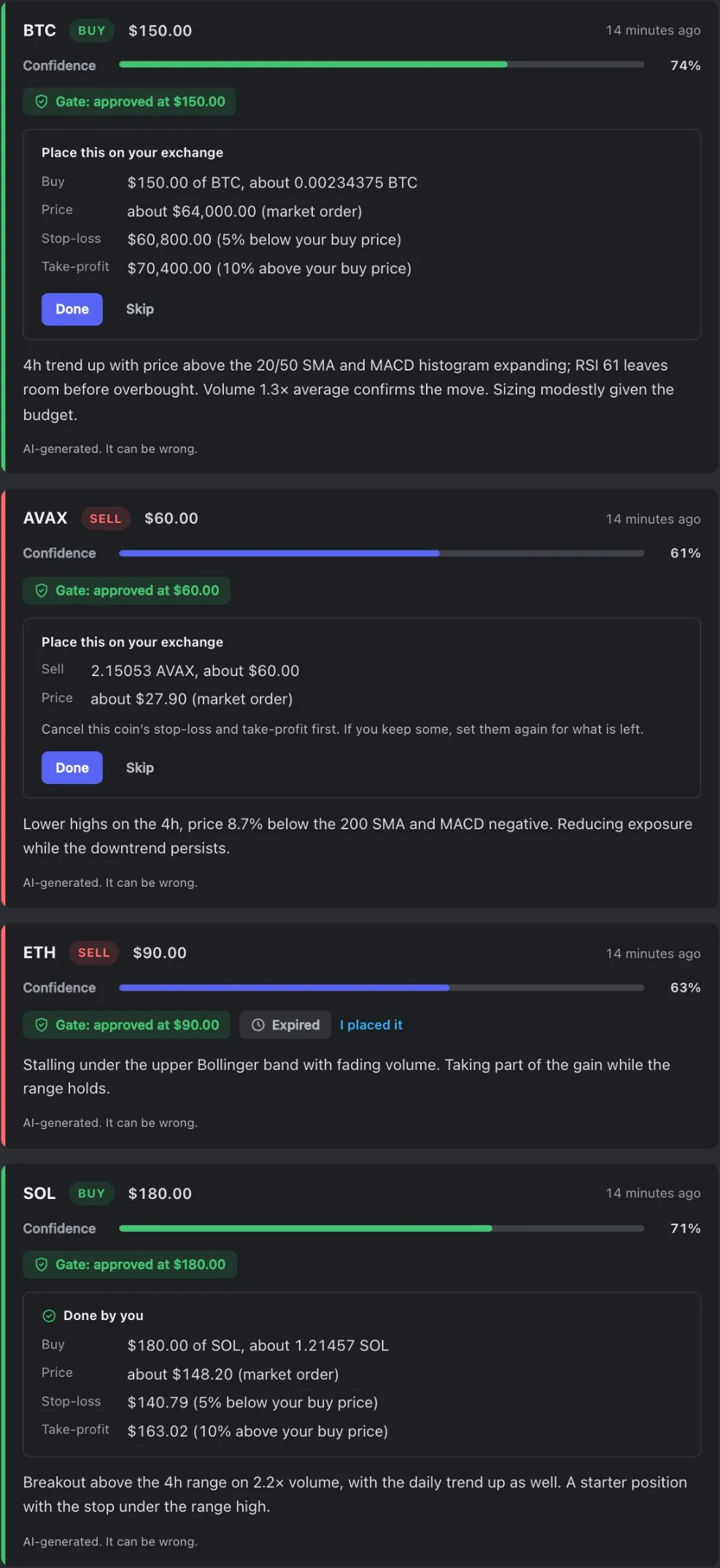
- Place this on your exchange A trade the risk gate approved. You place it by hand.
- Buy The approved amount, and about how many coins that is.
- Price The market price the AI saw. Your price can differ a little.
- Stop-loss and take-profit For you to set on your exchange after the buy. The app cannot set them.
- Done Press it after you placed the order (step 4).
- Skip You are not placing this one. Nothing is recorded.
- Before a sell Cancel that coin’s stop-loss and take-profit on your exchange first.
- Expired No longer waiting. If you placed it after all, press I placed it.
- Done by you A trade you confirmed. Its stop-loss and take-profit stay readable.
- For a sell, first cancel that coin's stop-loss and take-profit on your exchange.
- Place the order on your exchange as a market order, for the amount in the box. A market order buys or sells at once, at the current price.
- After a buy, set a stop-loss and a take-profit on your exchange, at the two prices in the box.
- Press Done, then type the quantity and the price your exchange shows. The price is in US dollars: if your exchange shows another currency, keep the price already in the field.
A buy under $10.00 is blocked as too small to place by hand. A sell has no minimum.
The buttons
| Button | What it does |
|---|---|
| Skip | You do not place this trade. Nothing is recorded. |
| I placed it | On a trade that shows Skipped or Expired, when you placed it after all. It opens the same form as Done. |
| Sold | On each position. It confirms a sale the app cannot see: a stop-loss or take-profit that filled, or a sale you made yourself. |
| Undo | In the message that stays for 30 seconds after Done or Sold. It takes that entry back. |
Tip
Confirmed a buy by mistake, and the Undo message is gone? Press Sold and type the same price.
Your positions and trades
A buy you confirm becomes a position. The Positions card then reads From the trades you confirmed, and Recent trades lists the trades you confirmed. Manual mode keeps its own figures, apart from Paper and Real money.
When a trade expires
A waiting trade shows Expired when:
- the next analysis runs,
- you confirm another trade for the same coin, or
- you leave Manual mode.
A waiting buy can also expire when you confirm a trade for another coin, because your limits changed.
So with autopilot, choose an analysis interval that leaves you time to place each trade. The app sends no email about a waiting trade: connect Telegram alerts to hear about one (chapter 4).
What the app cannot see
- The app never places, checks or cancels an order on your exchange. It shows no balances and no open orders, and it cannot set your stop-loss. When a stop-loss or take-profit fills, press Sold.
- The caps and the kill switch limit the trades the app gives you, and they count only what you confirm. They cannot stop an order you place on your own.
- Exchange fees count only if you include them in what you type.
- You can confirm a buy up to 110% of the amount in its box. What you buy above that stays outside the app's figures.
- I placed it works only while the trade is still listed on your dashboard.
Next: chapter 9, habits that keep you in control.