Screenshots show sample data from a preview account, not real trading results.
You have a key, a mode and a watchlist. Now run your first analysis and read what comes back.
Run analysis
Press Run analysis at the top right. It usually takes under a minute.

- Page title Where you are, and when the last analysis ran.
- Mode badge Your mode. Press it to open Trading mode in Settings.
- Autopilot badge Time to the next analysis. Press it for the controls.
- Run analysis Analyzes your whole watchlist now.
- Account menu Account, Settings, Billing, this guide and Sign out.
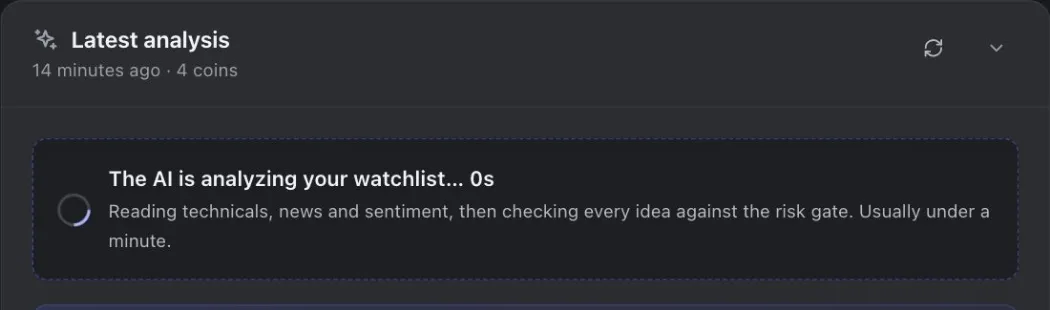
- Analysis running What the card shows while the analysis runs.
If the button is grey, press it: it says what is missing.
Read the decisions
The Latest analysis card shows the newest analysis. Here is one decision card, part by part.
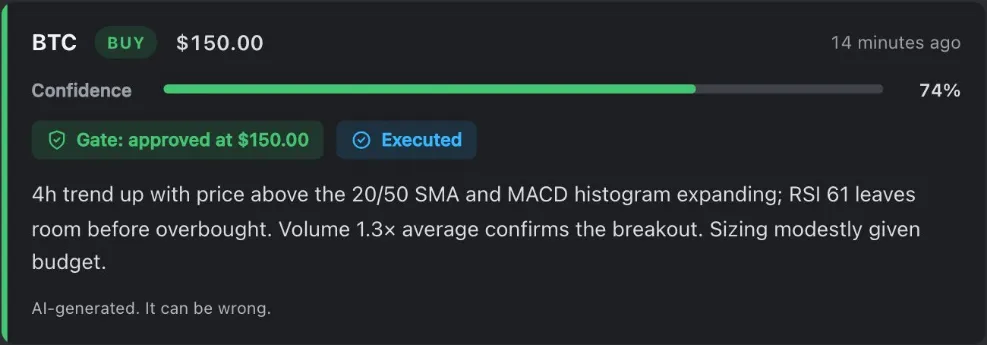
- Coin One card per coin on your watchlist.
- Action Buy, sell or hold.
- Size How much the order is for, in USDT.
- Time When the analysis ran.
- Confidence How sure the AI is, explained below.
- Gate verdict The risk gate approved the decision, sometimes at a smaller size.
- Executed The order reached Binance.
- Reasoning Why the AI proposes this, in plain words. Long ones have Show more.
- AI label Every decision is AI-generated and can be wrong.
Buy, sell or hold
BUY opens a position or adds to it. SELL sells all or part of a position. HOLD means no order: the AI sees no good trade now.
Confidence
How sure the AI is, from 0 to 100%. Below the minimum of your risk level (70% on Low, 60% on Medium, 50% on High) the gate blocks the decision.
The gate's verdict
| You see | What it means |
|---|---|
| Gate: approved at $… | The decision passed every rule at the size the AI proposed. |
| Gate: hold | A hold: nothing to check and no order. |
| Gate: approved, clamped to $… (per-coin cap) | Made smaller to fit a cap. The screen says clamped and names the cap. |
| Blocked: per-coin cap … | The coin already has its full share of your budget. |
| Blocked: total budget cap … | Your whole budget is already at work. |
| Blocked: real-money maximum … | Real money only: your maximum amount is already at work (chapter 7). |
| Blocked: confidence … is under the … minimum | The AI was not sure enough for your risk level. |
| Blocked: daily loss … exceeds limit | The kill switch paused new buys (chapter 2). Sells still work. |
| Blocked: no … position to sell | There is no position in this coin to sell. |
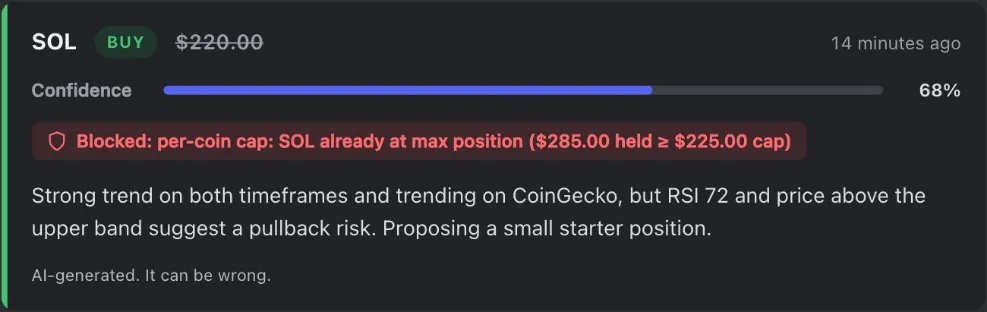
- Size struck through Nothing was ordered.
- Blocked The rule that blocked the decision, in the gate’s words.
What happened to the order
Executed: the app placed the order on Binance. Not executed: nothing was placed, for example because your mode is Off. In Manual mode the card has a box, Place this on your exchange, and you place the trade yourself (chapter 8).
The whole card
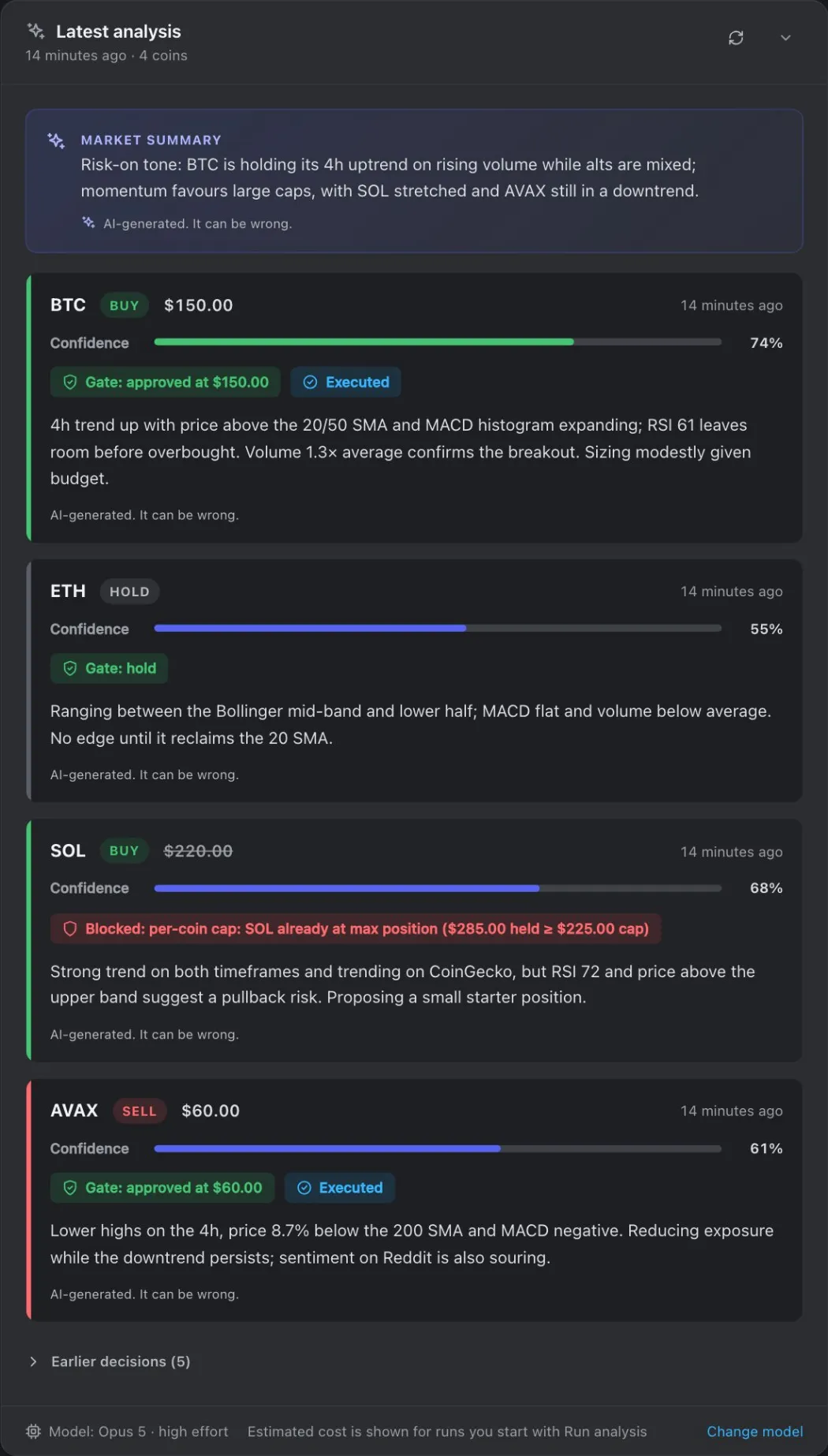
- Last analysis When the latest analysis ran and how many coins it covered.
- Market summary The AI’s short read of the market in this analysis.
- Decision cards One per coin, explained above.
- A blocked decision Explained above.
- Earlier decisions The analyses before this one: your decision journal. Press to open.
- Model and cost The AI model used. An analysis you start yourself also shows its estimated cost.
- Change model Opens the Strategy card in Settings.
- Refresh Loads the newest decisions.
- Fold Folds the card (chapter 6).
Autopilot
Autopilot runs an analysis by itself at your analysis interval (chapter 4). Start it in the sidebar, from the autopilot badge in the top bar, or from the setup checklist. Stopping it cancels no order on Binance.
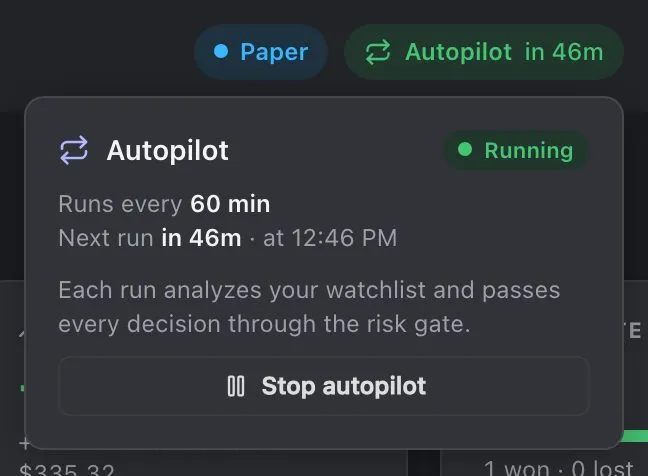
- Autopilot badge Press it to open or close these controls.
- Status Running or Off.
- Schedule Your analysis interval, and when the next analysis is due.
- Start / Stop autopilot Starts or stops the scheduled analyses.
Positions, open orders and trades
The Positions card has three tabs. In Manual mode it has none: it shows the positions from the trades you confirmed, each with a Sold button (chapter 8).
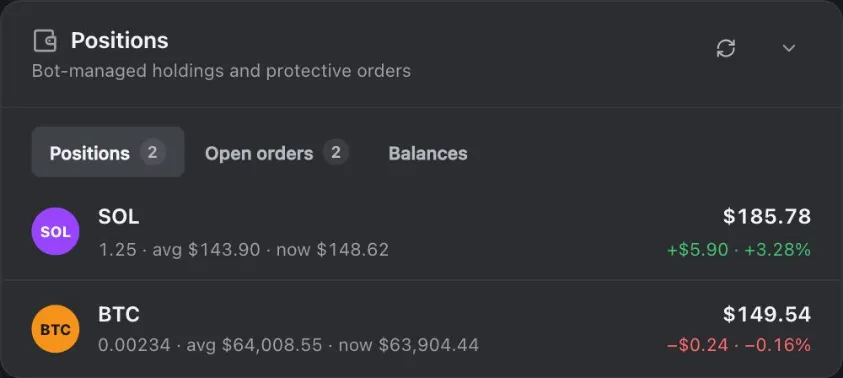
- Positions Coins the app bought and still holds, with how many.
- Open orders Your stop-loss and take-profit orders on Binance.
- Balances Everything in the connected Binance account.
- Quantity and prices Amount held, average cost and the price now.
- Value What the position is worth now.
- Unrealized P&L Gain or loss if you sold now, in dollars and percent.
Open orders shows the orders on Binance for the coins on your watchlist: the stop-loss and the take-profit of each position. Balances also says whether the account is the testnet (play money) or your real account.
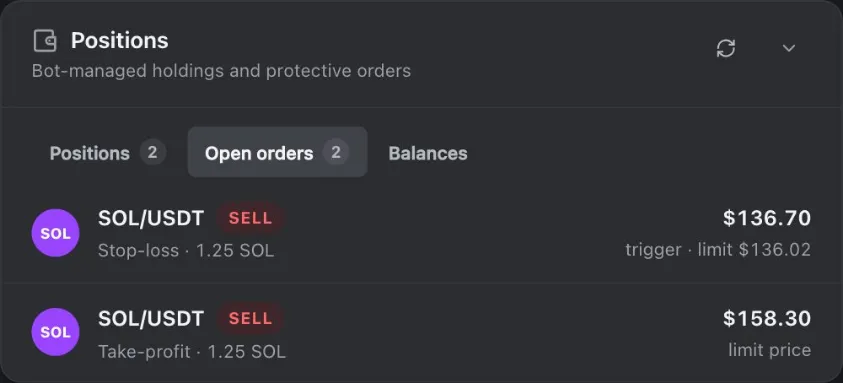
- Pair and side The coin pair and whether the order sells or buys.
- Order type Stop-loss or Take-profit, and the quantity.
- Trigger price The price at which the order triggers.
Recent trades
Every order the app placed, newest first, with its status: filled, placed (a stop-loss or take-profit that waits on Binance), partly filled, rejected, failed, error or skipped.
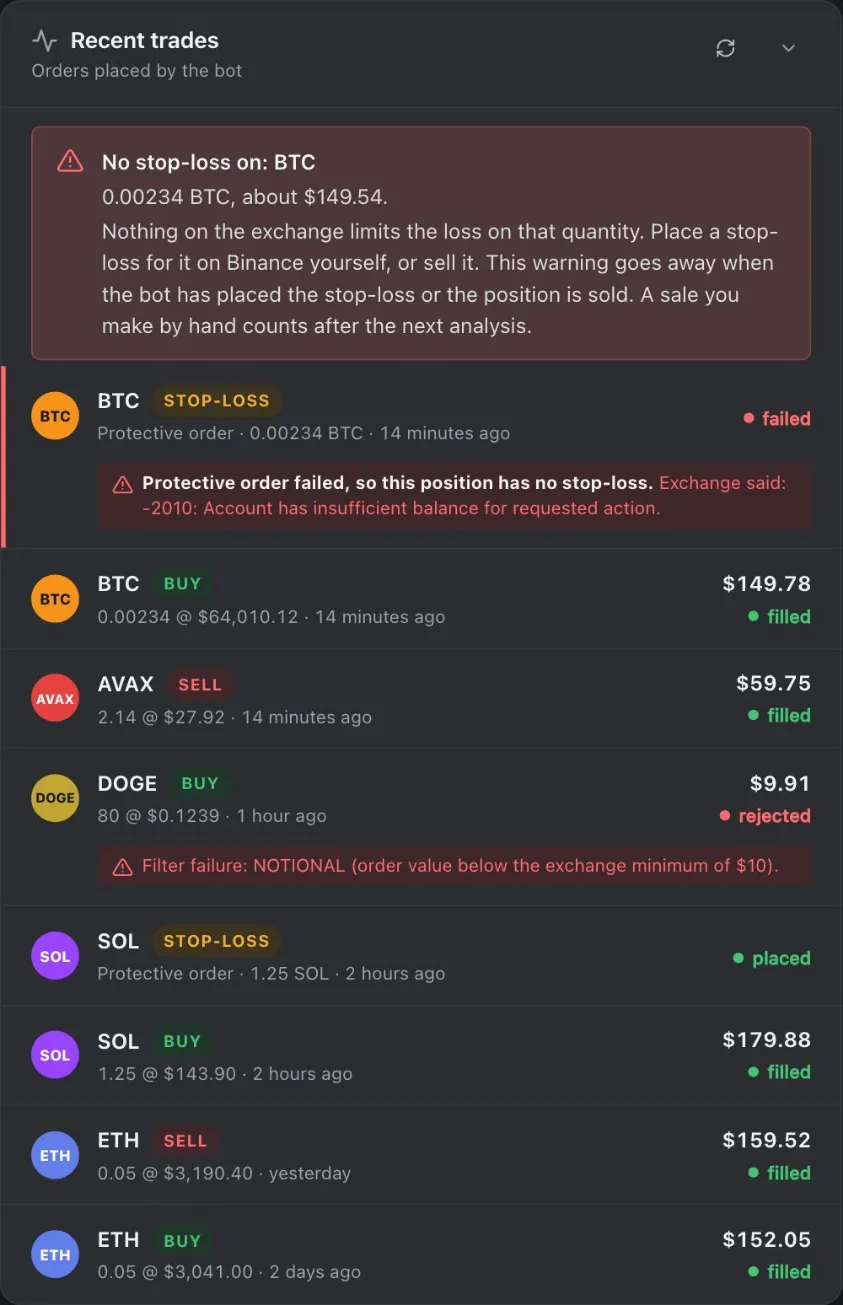
- No stop-loss warning A position may have no stop-loss on Binance. The box below says what to do.
- Protective order The stop-loss and take-profit the app placed after a buy.
- Status Filled, placed, partly filled, rejected, failed, error or skipped.
- Quantity and price How much, at what price, and when.
- Exchange message Why Binance refused an order, in its own words.
If you see a red "No stop-loss" box
A position may have no stop-loss on Binance. While trading is on, the app tries to place it again. If the box stays, place a stop-loss on Binance yourself for the quantity in the box, or sell that quantity. The box goes away when the app has placed the stop-loss or the position is sold. Your own stop-loss does not remove it.
Next: chapter 6 explains every screen. To trade for real, read chapter 7 (Real money) or chapter 8 (Manual mode).